Interactive Framer Components
Interactive pieces for Framer that respond to the visitor: before/after sliders, scratch-off coupons, animated counters, magnetic buttons, 3D tilt cards, physics tags and cursor image trails.
13 components, 2 free.

Portfolio Reveal Hero
Mesmerizing organic blob-mask reveal between two images.

Bouncing Image Trail
Add an immersive, GSAP-powered bouncing image trail to your cursor.
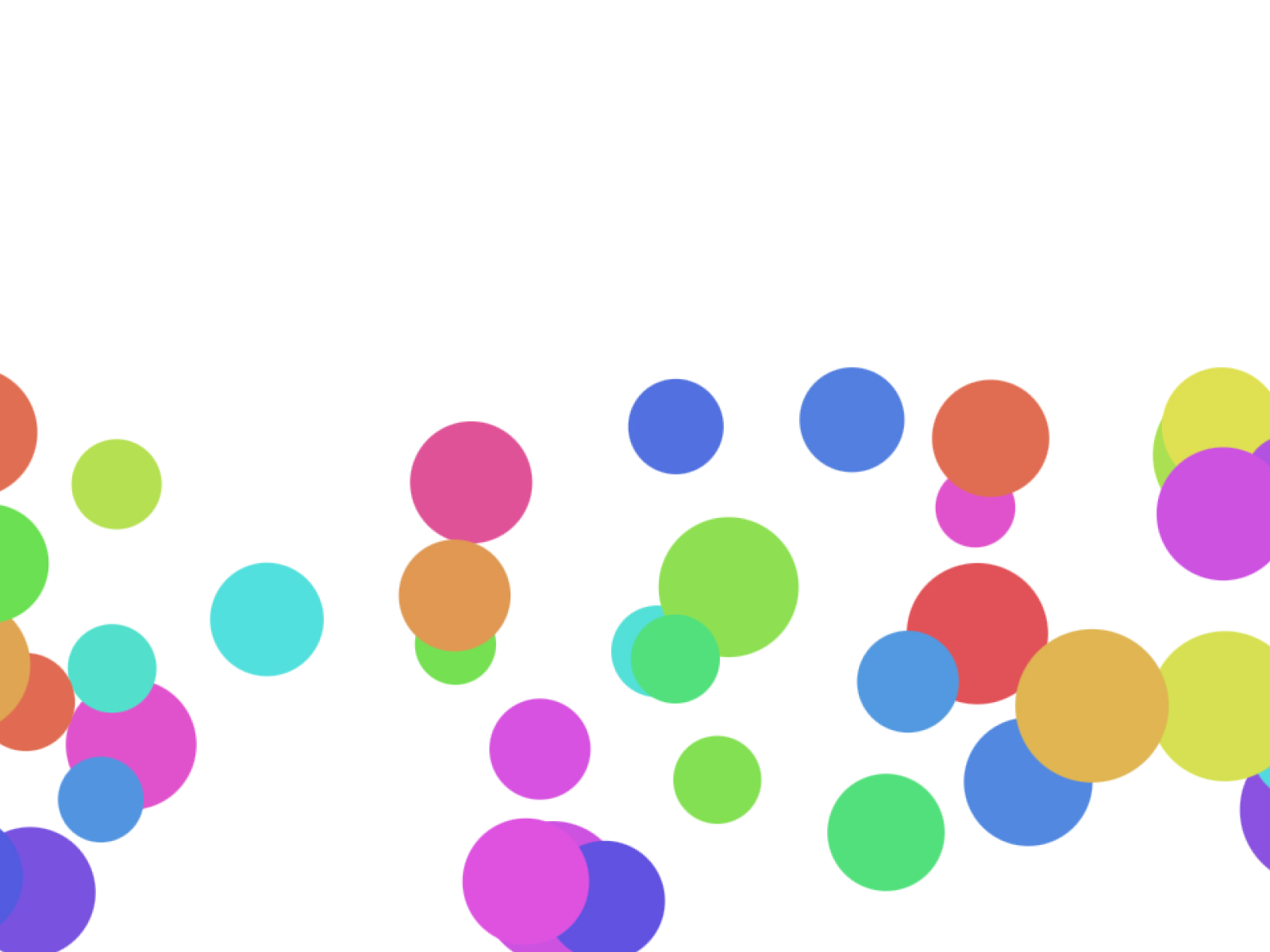
Gravity Bouncing Balls
Interactive 2D physics simulation with gravity, collisions, and mouse repulsion.
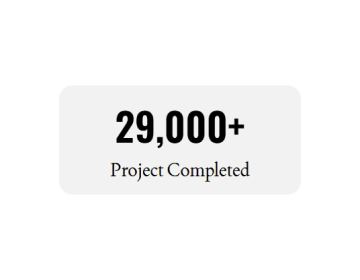
Counter Number
Animated number counter with custom formatting and easing.
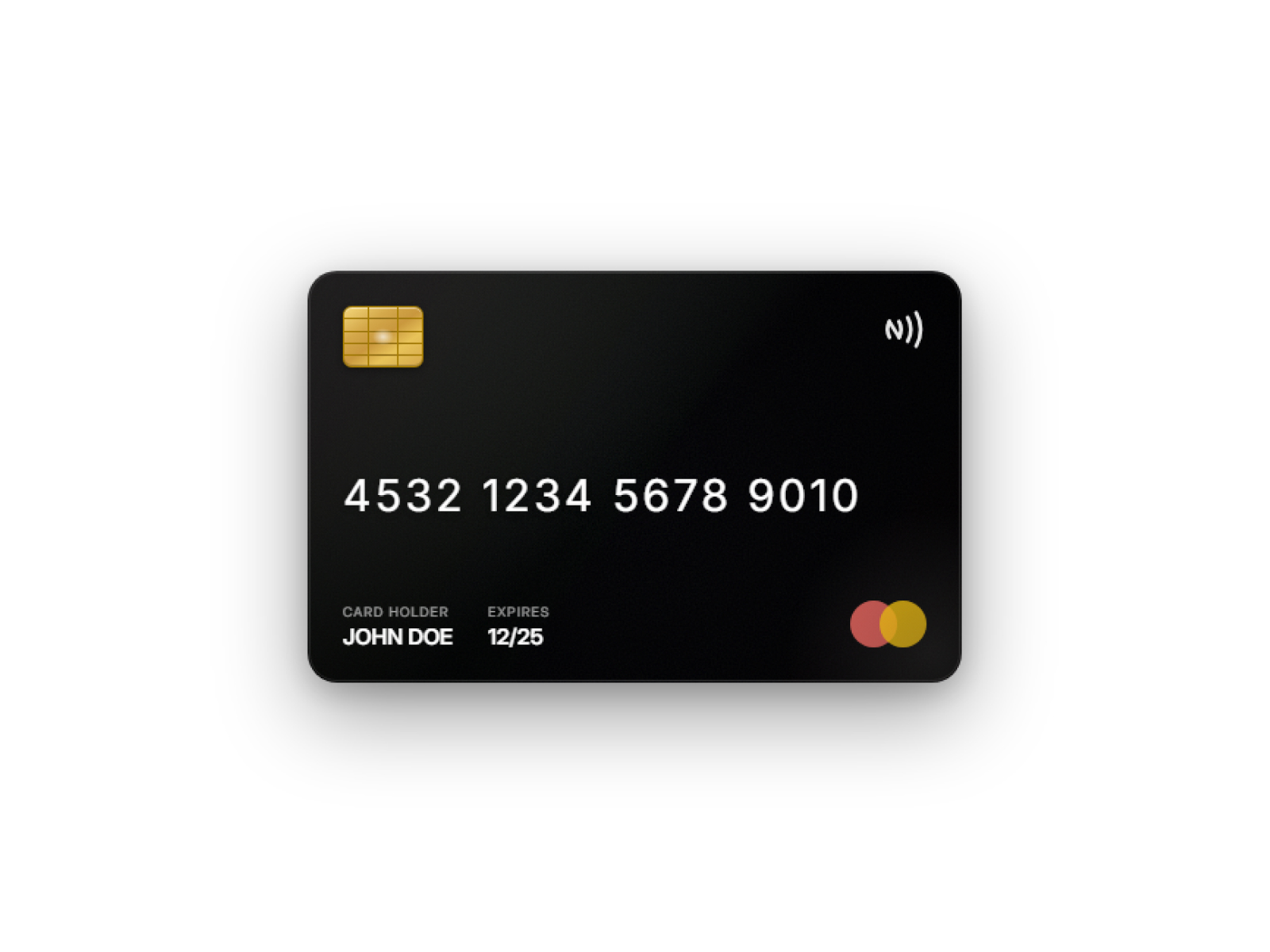
Credit Card 3D Tilt
Premium 3D credit card with holographic glare and glassmorphism effects.

Magnetic Buttons
Interactive magnetic buttons that follow your cursor

Exist Popup
Capture leads before they leave with smart exit-intent popups that trigger at the perfect moment.

BubbleBurst
Interactive 3D physics simulation with colorful bouncing bubbles.
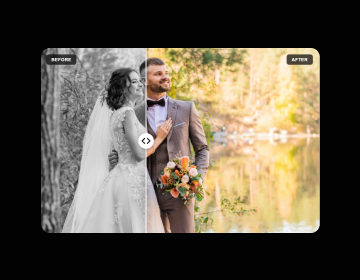
Before After Picture
Showcase transformations with smooth, interactive image comparisons and arrow handles.
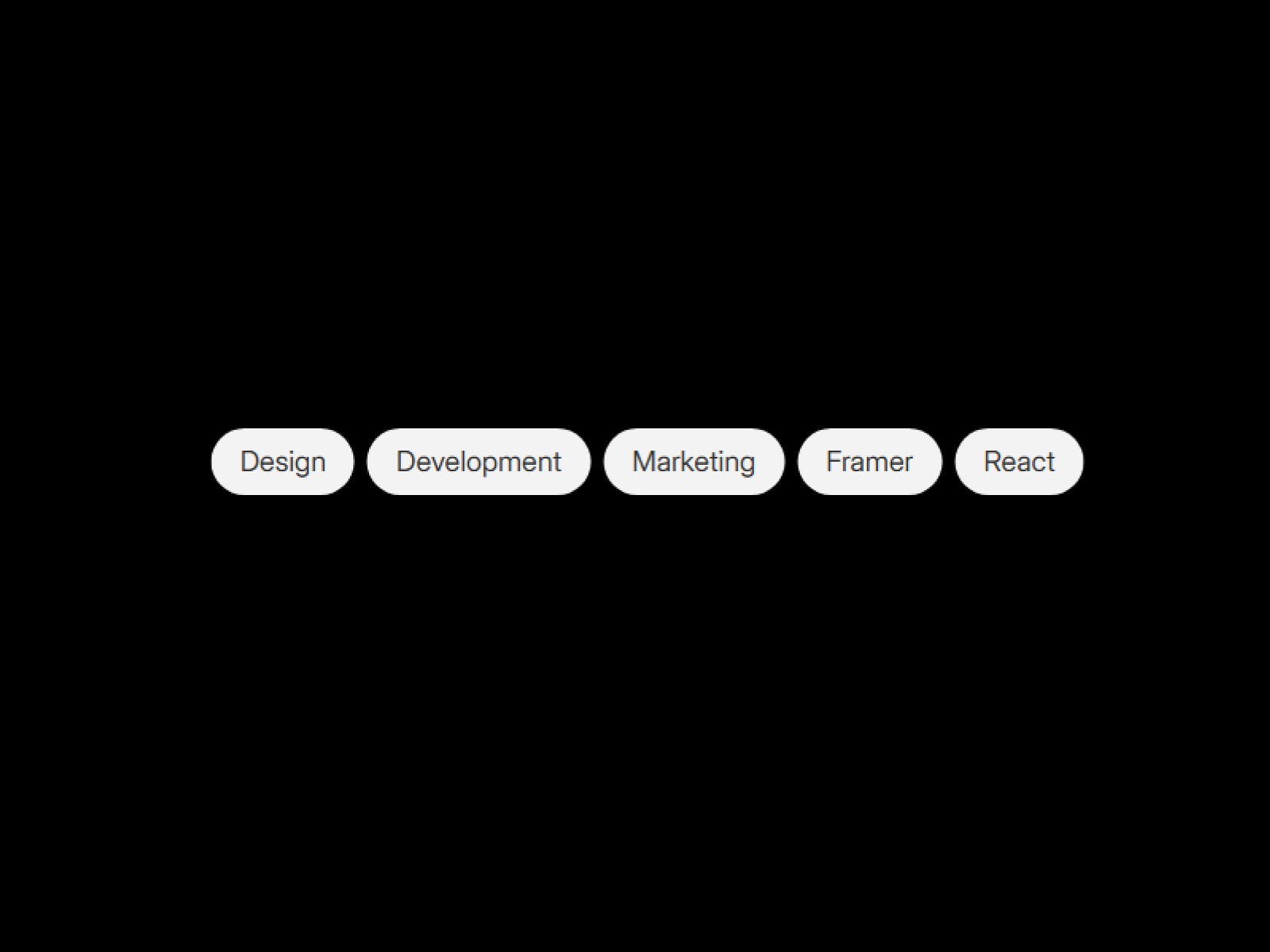
Tag Splitter
Turn any comma-separated list into stylish tag pills instantly.

Interactive Particles
Transform any image into an interactive 3D particle field that responds to mouse movement and touch.
Physics Tags
Interactive 3D physics tags that react to gravity and collisions.
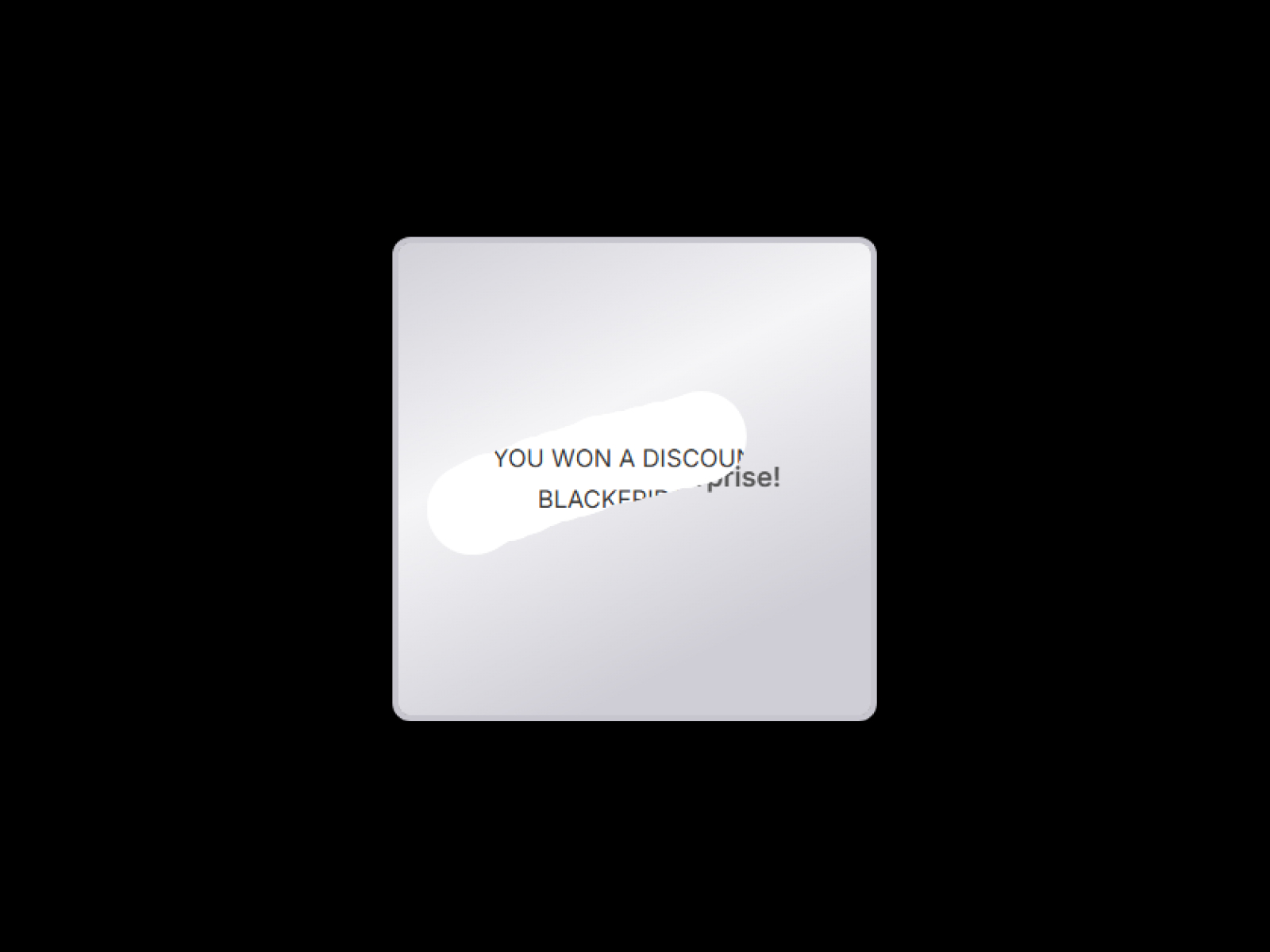
Scratch & Win Coupon
Engage users with a realistic scratch-off coupon experience.
Which interactive & ui component should you use?
- Before After Picture: A before/after image comparison slider
- Scratch & Win Coupon: A scratch-off discount reveal
- Counter Number: Animated stats and key figures
- Magnetic Buttons: Buttons that follow the cursor
- Credit Card 3D Tilt: A 3D card for pricing or checkout
- Physics Tags: Skills or features as falling tags
Interaction that earns attention
These components give visitors something to do, which keeps them on a section longer. Before After Picture shows a transformation with a drag, click or hover divider. Scratch and Win Coupon turns a discount into a small game. Counter Number animates key figures with custom formatting. Use one interactive moment per section so it stays a surprise rather than noise.
Small UI details
Smaller components polish everyday UI. Magnetic Buttons pull toward the cursor, Credit Card 3D Tilt adds glare and depth to a pricing or checkout visual, Physics Tags drop skills or features into a playful pile, and Tag Splitter turns a comma-separated CMS field into tag pills.
Interactive & UI FAQ
Do interactive components work on touch screens?
Drag and tap interactions work with touch. Hover-only effects have nothing to respond to on phones, so check the component's settings for a touch option, or show a static version at the mobile breakpoint.
Can I connect them to the CMS?
Tag Splitter is built for CMS text fields. On a CMS page you can bind most components' text and image properties to CMS fields, so each item gets its own content.
Can I restyle them to match my site?
Yes. Colors, sizes, radius and text are set in the properties panel, and each component page lists its settings.
Are these Framer interactive & ui components free?
Some are free with a FramerHub account, and the rest are one-time purchases with lifetime updates. Each card shows its price.
How do I add one to my Framer project?
Open the component page, get it (free or paid), then copy it from your FramerHub dashboard and paste it onto your Framer canvas. Its settings appear in the properties panel.