Bulk Find and Replace Text Across a Framer CMS Collection
Framer CMS edits items one by one. Here is how to find and replace words, links, or regex patterns across an entire collection in one pass with preview, CSV export, and undo.
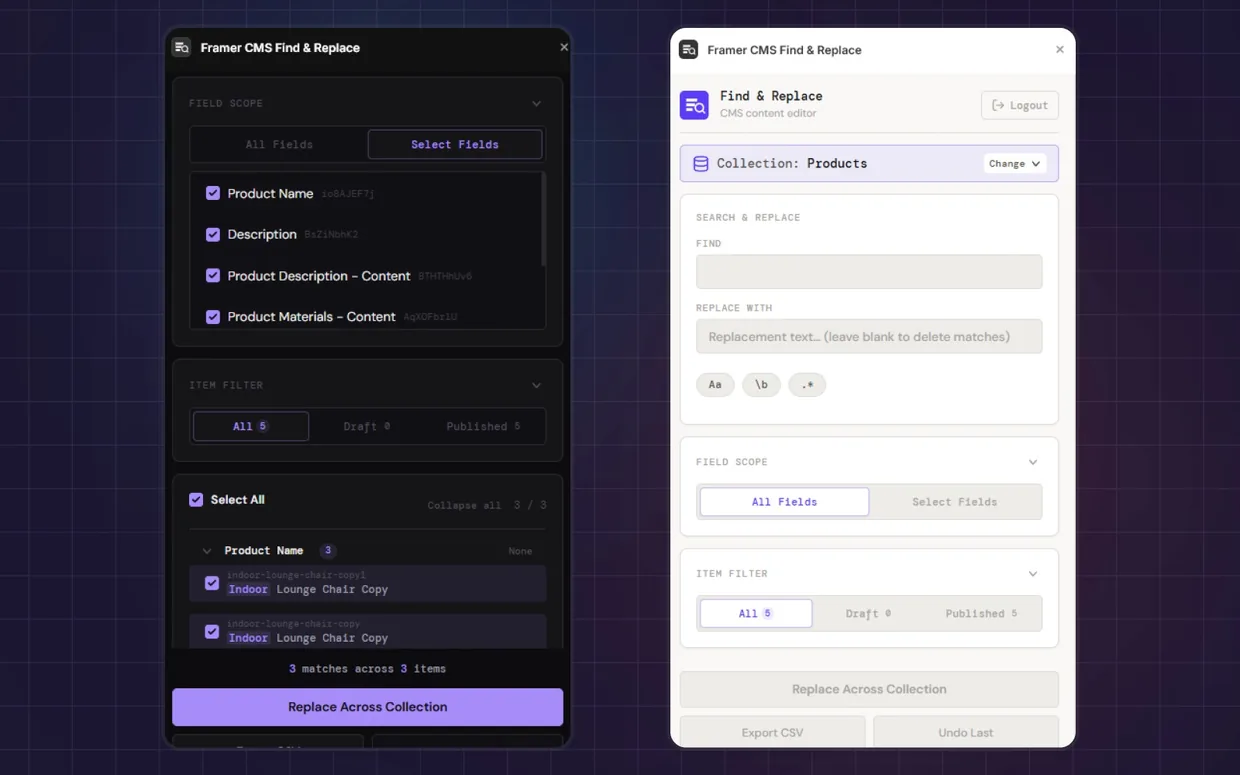
A client rebrands, changes their booking URL, or asks you to change "pc" to "pieces" across 180 menu items. In native Framer CMS, there is no collection-wide find and replace. Your choices are opening 180 items by hand or exporting the collection to CSV, editing in a spreadsheet, and risking messy re-imports.
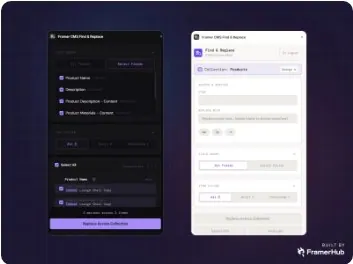
CMS Find & Replace is our free Framer plugin built for that exact job. Pick one collection, preview every matched line grouped by field, untick anything you want left alone, apply in one click, and roll back the last run if needed.
Key Takeaways
- Free, no paid tier: requires signing in with a free FramerHub plugin account (email or Google).
- Supported fields: edits plain text (
string), rich text (formattedText), and link (link) fields only. Slugs, numbers, dates, booleans, images, and references are untouched.- Safe workflow: grouped preview with per-row checkboxes, confirmation modal, optional CSV export of every before/after match, and one-step undo.
- Scope limit: runs on one CMS collection at a time and edits CMS content only (not static canvas text).
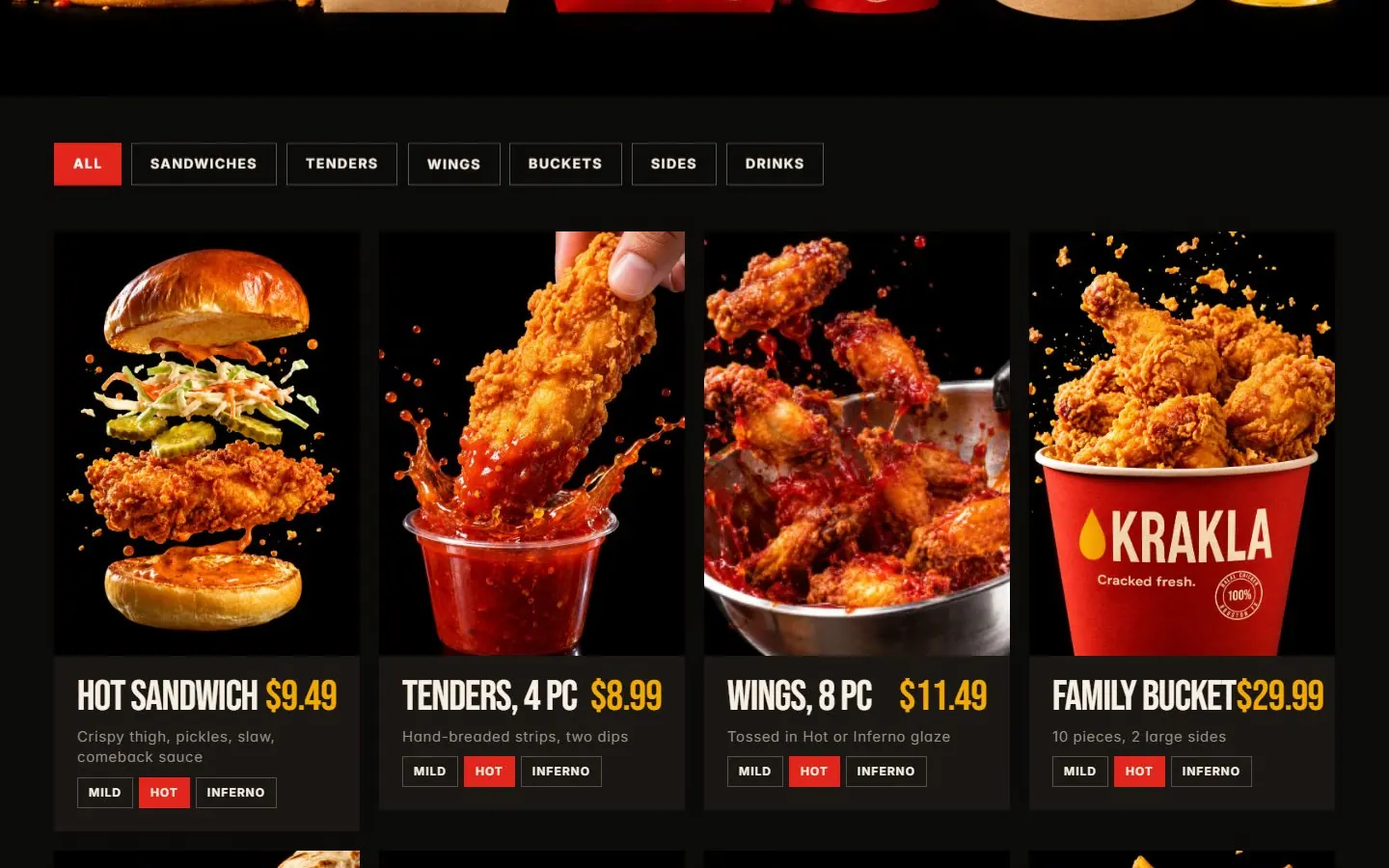 On Krakla, our restaurant template, swapping "pc" to "pieces" across the Menu collection takes one search and one click while leaving "10 pieces" untouched.
When Native Editing Stops Scaling
For three or four items, opening each CMS row in Framer is faster than installing anything. Bulk find and replace earns its keep on four recurring agency tasks:
- Client rebrands: swapping an old company or product name across 80 case studies or blog posts.
- Broken or moved URLs: updating a changed Calendly, Stripe, or help-center domain stored inside link fields and rich text.
- Year or pricing refreshes: changing seasonal labels across a rooms, events, or courses collection.
- Messy CSV imports: stripping double spaces, broken placeholder strings, or inconsistent abbreviations after migrating from WordPress or Webflow.
Step 1: Install and Pick Your Scope
- Install CMS Find & Replace from the Framer Marketplace and open it inside your project (it works in both canvas and collection modes).
- Sign in with your FramerHub plugin account (email or Google).
- Choose one CMS collection from the dropdown.
- Filter which items to include: All, Drafts only, or Published only (counts display beside each option).
- Keep all eligible text/link fields selected, or tick only the specific fields you want searched (for example,
DescriptionandBooking Linkonly).
Step 2: Choose Your Search Mode
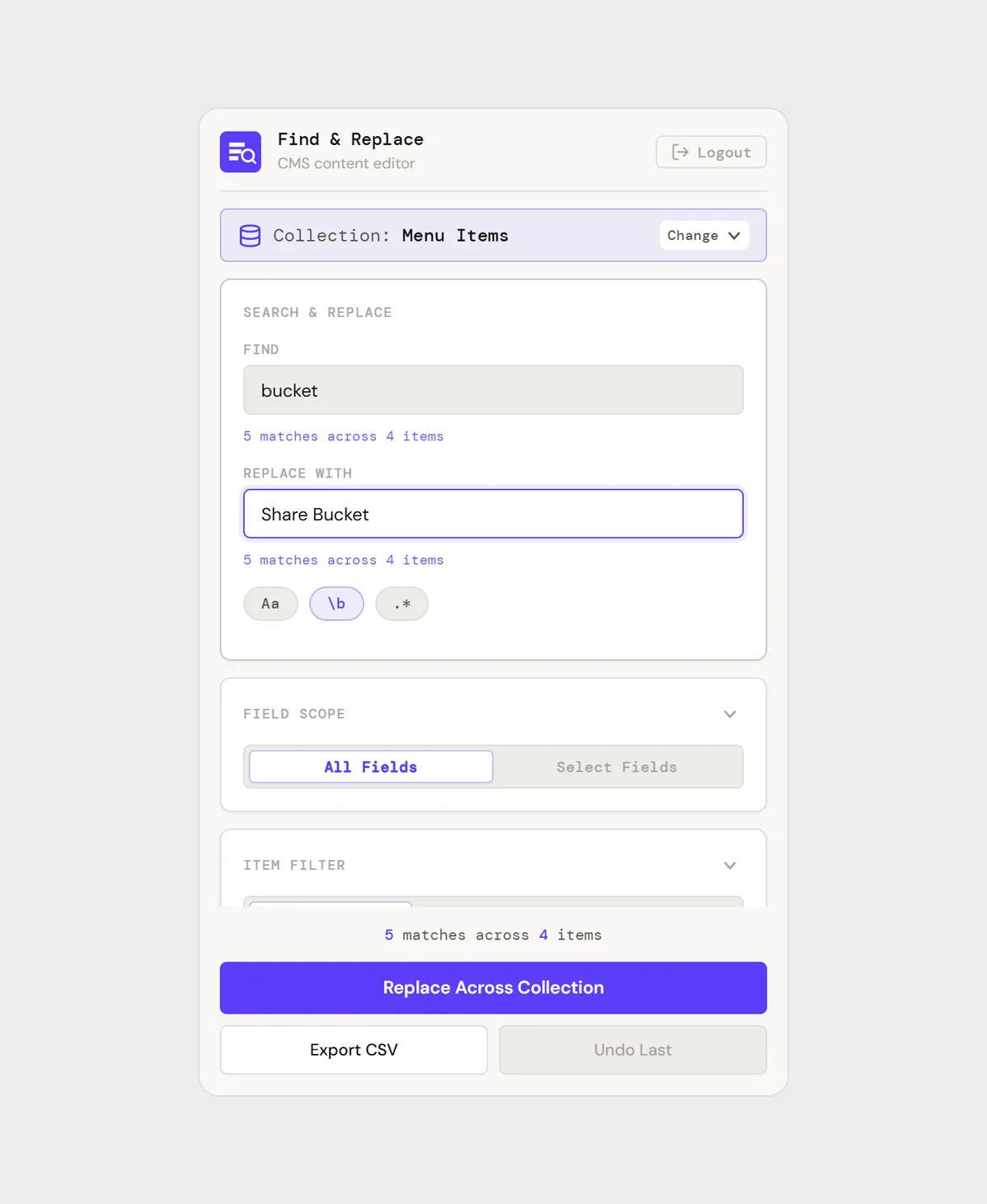 Pick one collection, narrow to drafts or specific fields, and toggle Whole Word or Regex before previewing matches.
Type the text to find and the replacement text, then pick from four search modes:
- Plain text: standard case-insensitive substring matching.
- Case sensitive: distinguishes
Framerfromframer. - Whole word: matches
pcas a standalone word without touchingspaceorpieces. - Regex: matches patterns like double spaces or four-digit years. Patterns that could match empty strings are rejected automatically before running.
Leaving the Replace with box empty puts the plugin into deletion mode (stripping matched text completely), and the plugin displays a clear warning before you apply.
Step 3: Inspect the Grouped Preview (and Export CSV First)
Nothing writes to your CMS until you confirm. CMS Find & Replace scans the collection and shows every match grouped by field (loading 50 groups at a time on large result sets) with inline before/after excerpts.
- Untick individual rows or whole field groups you do not want touched.
- Export CSV before applying if you want a permanent audit trail (
itemId,itemSlug,draft,fieldId,fieldName,matchCount,before,after). - Click Replace and approve the confirmation modal.
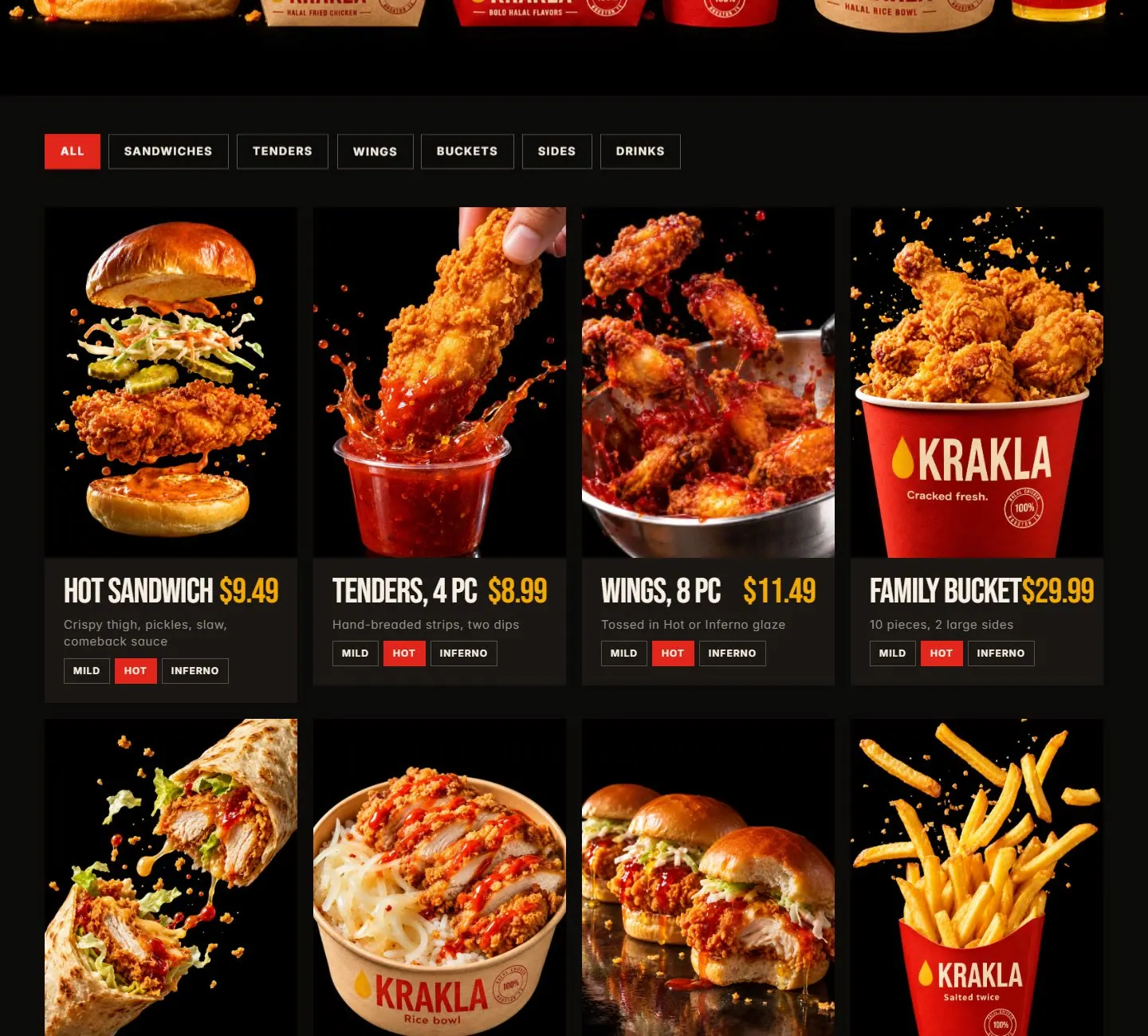 Every match shows its exact before-and-after text grouped by item so nothing changes blindly.
Step 4: Verify Undo and Publish
After a run finishes, the plugin shows a summary ("old" -> "new" with timestamp) and stores a one-step undo checkpoint for that most recent run. Two practical safety rules:
- Undo stores only the single most recent run, and on very large runs Framer's collection plugin-data storage cap may be too small to hold the snapshot (the plugin warns you if undo had to be skipped, so export the CSV first on big collections).
- Test regex carefully on rich text (
formattedText) by checking the preview on a couple of rows first so you never match across underlying markup. - Publish the site once the CMS items look right so your changes go live on your production domain.
Working on a larger CMS build? See our Framer CMS limitations guide for every collection cap and workaround, or pair Find & Replace with CMS Scheduler when prepping a batch of timed posts.
Frequently Asked Questions
Does Framer CMS have built-in find and replace?
No. Native Framer CMS lets you open and edit one collection item at a time. To update text across dozens or hundreds of items, you either export and re-import CSV files or run a dedicated plugin like CMS Find & Replace inside Framer.
Which CMS field types does CMS Find & Replace update?
It searches and updates plain text (string), rich text (formattedText), and link (link) fields. Item slugs are left untouched so live URLs never break unexpectedly, and numbers, dates, booleans, images, files, and references are skipped.
Can I undo a replace if I spot a mistake?
Yes, for the single most recent run. CMS Find & Replace saves a one-step undo checkpoint on the collection (and tells you ahead of time if a very large change set exceeds Framer's plugin-data limit). Exporting the CSV match list before applying gives you a full backup on big edits.
Can it edit static canvas text or run across all collections at once?
No. It runs on one CMS collection per pass and edits CMS fields only. If you need to update wording across three collections (such as Blog, Projects, and Team), run three quick passes, one per collection.
Clean up a whole Framer CMS collection in one pass
Free plugin with grouped preview, whole-word and regex search, CSV export, and one-step undo.

Shahul
Founder of FramerHub
More CMS guides
CMS5 min read
Keep Filters in the URL So Clients Can Share Results
Why shareable filter URLs matter on directories, real estate portals, and recipe sites, what Framer's native Dynamic Filters do, and how to turn on URL sync with CMS Filter.

CMS11 min read
How to Build a Directory Website in Framer
Build a directory website in Framer: start from a template or from scratch, model listings in the CMS, use native Dynamic Filters, and add multi-field search, sort and counts.

CMS12 min read
Framer CMS Collections: The Complete Tutorial
A hands-on tutorial for Framer CMS collections: creating one, structuring fields, connecting a page template, and generating dynamic pages from scratch.