How to Build a Directory Website in Framer
Build a directory website in Framer: start from a template or from scratch, model listings in the CMS, use native Dynamic Filters, and add multi-field search, sort and counts.

A framer directory is a site where visitors arrive looking for one thing in a long list: a local plumber, a design tool, an agency in their city, a template for their use case. If they can't narrow the list down in a few seconds, they leave.
We build CMS plugins for Framer, including the filtering plugin a lot of directory sites run on, so this guide comes from seeing many directory builds go well and badly. It covers whether to start from a framer directory template, how to model listings in the CMS, what native Dynamic Filters handle, and what to add once your directory outgrows them.
Start from a template or from scratch?
The fastest way to a working framer directory website is a template. The Framer Marketplace has a Directory template category with free and paid options, and independent creators sell more on their own stores. Most cover the same pages: a home page with featured listings, an index of all listings, a detail page per listing, category pages and a submission page.
Before you buy one, open its CMS and check three things:
- How categories are stored. If the category is a plain text field, you can't use Framer's native tab or checkbox filters on it. You want a Collection Reference field pointing at a Categories collection.
- Whether each listing has its own detail page. A directory without listing pages gives search engines nothing to index.
- How submissions work. A submission page that only collects an email is less useful than a form whose fields match your CMS fields.
Building from scratch makes sense when your listings need fields no template has (opening hours, price tiers, service areas) or when the directory is part of a larger site. The rest of this guide works for both routes, because a template is just a CMS structure and a few Collection Lists you'll edit anyway.
Step 1: Model your listings in the CMS
Get the data model right before any layout. A typical directory needs one main collection and two small supporting ones.
Listings collection:
- Name: the business, tool or resource title
- Description: a short summary for the listing card, plus a longer rich text field for the detail page
- Image: a photo or logo
- Category: a Collection Reference to a Categories collection
- Location: a Collection Reference to a Locations collection (local directories only)
- Tags: a Multi Collection Reference, for finer filtering than category allows
- Featured: a boolean for priority or paid listings
- Website, phone, email: link and text fields as needed
Categories and Locations collections: each item needs a name and a slug, and optionally a description and image so each one can have its own landing page.
The reference fields matter more than they look. Framer's Dynamic Filters help article says Tabs, Toggles and Checkboxes need Collection Reference or Multi Collection Reference fields, and the Search Field works on Text fields. If you store category as free text, the native filters you want won't be available for it. Separate collections also stop "Restaurant", "Restaurants" and "Food" from turning into three categories.
For a deeper walk through fields and references, see our Framer CMS collections tutorial.
Step 2: Build the listing grid and detail pages
Drag a Collection List onto your directory page, connect it to Listings, and design the card: image, name, category, and a line of description. Turn on pagination in the Collection List settings once you have more than a screen or two of listings.
Then create the detail page. Framer generates one page per CMS item, so a single design covers every listing. Put the full description, contact details, a website button and a map embed here if you have one.
For the featured row on your home page, add a second Collection List connected to the same collection with a static filter of Featured is true and a small limit. That needs no plugin.
At this point you have a working directory. For under 20 or 30 listings, a clean grid with categories may be all you need.
Step 3: Add native Dynamic Filters
Select the Collection List, open the Content section, choose Filter, pick a CMS field, and pick a Dynamic filter type. Framer creates a page variable for each filter, and the filter control is an ordinary layer you can place anywhere: a sidebar, a top bar, a sticky header.
What you get natively:
- Search Field on a text field such as Name
- Tabs, Toggles, Checkboxes on category, location and tag reference fields
- Dropdown, Number Field and Date Picker for the field types they support
- Empty States when nothing matches, and pagination on the filtered list
- A reset button you build yourself: add a button and an interaction that resets the filter variables
For a directory with one or two filter dimensions and a few dozen listings, that's enough. Our Dynamic Filters guide walks through the setup screen by screen.
Where native filtering runs short on a directory
Directories hit the same gaps as they grow:
- Search covers one field. A visitor typing "vegan" expects matches in the name, the description and the tags. The native Search Field filters on the text field you bind it to.
- No visitor sort control. You can set the order of a Collection List in the editor, but visitors can't switch between A to Z, newest, or highest rated.
- No result count. "24 listings" tells a visitor the filters worked. There's no native way to show it.
- No removable filter chips. Visitors can't see a row of everything they've applied and remove one item at a time.
- No synced filter groups. A desktop sidebar and a mobile drawer each need their own controls, and keeping them in agreement is on you.
Step 4: Add directory-grade filtering with CMS Filter
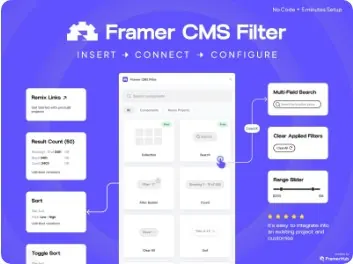
CMS Filter is our plugin for this gap. It's a set of code components that read from your existing CMS collection and share state through a store key.
Search across several fields. Pick which fields CMSSearch looks in, for example Name, Description and Tags.
Combined filters with Any/All logic. Category, location and tags active at once, and for multi-select filters you choose whether a listing must match any of the selected values or all of them. It works with option fields and with single and multi reference fields.
Visitor sort. CMSSort offers sort options on any field, with readable labels by field type: A to Z for text, Low to High for numbers such as rating, New to Old for dates.
Counts, chips and clear-all. CMSCount shows how many listings match, CMSFacets shows the active filters as chips visitors can remove, and CMSClearAll resets everything.
Shareable filtered URLs. Turn on URL sync on the collection and the current filters go into the address bar, so "coffee shops in Austin, open late" is a link someone can send.
Setting it up
- Install CMS Filter from the plugin page or the Framer Marketplace.
- Replace your Collection List with the
CMSCollectioncomponent, connect it to Listings, and give it a store key. - Add
CMSFilterswith the same store key and configure category, location and tag filters. - Add
CMSSearchand choose the fields it searches. - Add
CMSSortwith the sort options you want to offer. - Add
CMSCount,CMSFacetsandCMSClearAllabove the grid. - For a mobile filter drawer, duplicate the
CMSFiltersblock with the same store key. Both copies stay in sync.
Live directory-style demos and the full docs are at framercmsfilter.com.
Filtering built for directories
Search across several fields, combined filters, visitor sort, result counts and removable filter chips on any Framer CMS collection.
Directory design patterns that work
Featured row above the index. Driven by the Featured boolean, it gives paid or editor-picked listings a place to stand out without breaking the visitor's sort order below.
Category landing pages. Give the Categories collection its own detail page template, and put a Collection List on it filtered to listings in that category. Every category becomes a real page with its own URL, title and intro text.
Map plus list. Local directories often pair a list with a map. If you embed a map, keep it next to the filtered list and make clear whether it shows all listings or the filtered set, so visitors aren't confused by pins that don't match the list.
A submission form that matches your fields. If businesses can submit listings, ask for exactly the fields your CMS needs, with category and location as fixed choices rather than free text. Clean submissions mean less editing before you publish.
Supporting sections. FAQs, testimonials and "submit your listing" calls to action appear on most directories. FramerHub Components covers common patterns so you don't build each one from scratch.
Making money from a directory
Many directories are a business, not a side page. The common models:
Paid or featured listings. A free basic listing and a paid upgrade to the featured row. Model it as the Featured boolean or a Tier field, and use it for the featured Collection List and a distinct card style.
Sponsored placements. A directory with steady traffic can sell a sponsored slot at the top of a category page.
Lead fees. Some directories charge businesses per enquiry rather than per listing. That needs a contact form on each detail page and a way to attribute enquiries to the listing.
Gated details. Some show basic info publicly and keep contact details or reviews for members. That usually means a membership tool on top of Framer.
None of these change the core build. They change which fields you track and how those fields drive visibility and order.
SEO for directory sites
A directory can rank for hundreds of long-tail searches, because each listing and each category is a page with its own intent. That only works if the structure supports it.
Every listing gets an indexable detail page. Set the page title and meta description from the item's own fields (name, category, location) rather than repeating one generic line.
Category and location pages are your landing pages. "Coffee shops in Austin" should be a real CMS page with its own URL and intro, built from the Categories or Locations collection. Don't count on filtered views of the index page to rank: they're the same URL with different state, and shareable filter links are for people, not crawlers.
Avoid thin listings. Hundreds of listing pages with a name and one sentence read as low quality. Require a real description on submission, and add unique details such as hours, services and photos.
Add structured data where it fits. Schema types like LocalBusiness help search engines understand local listings. Add the JSON-LD through custom code in the page head, and check it with Google's Rich Results Test.
Link listings back to their category. A breadcrumb or "More in Coffee shops" section on each detail page passes link value back to your category pages.
Directory examples by niche
Local business directories. Restaurants, contractors and services by city. Category and location are the two filters that matter, and the map often matters as much as the list.
Tool and software directories. Organised by use case, pricing model and platform. Tags matter more than one category, because a tool usually fits several use cases. Search across name and description is the most-used control.
Agency and freelancer directories. Filtered by service, industry and budget range. A Verified boolean is common to highlight vetted listings.
Resource libraries. Articles, templates and assets by category and format. Visitors arrive with a specific need, so search does most of the work.
Member directories. Filtered by cohort, location or speciality, often behind a login.
Real estate and job boards follow the same pattern with extra fields such as price ranges, bedrooms and remote or on-site. Our real estate website guide covers that build.
Common directory-building mistakes
Filtering before there's anything to filter. A directory with 8 listings doesn't need six filters. Launch with categories and search, then add more as the list grows.
A loose category list. Categories added ad hoc as listings come in make filters unreliable. Define categories and tags up front as their own collections.
Desktop-only filters. Much directory browsing happens on phones. A sidebar that disappears on mobile leaves visitors scrolling an unfiltered list.
Blank results. When a filter combination returns nothing, show an Empty State that suggests clearing a filter, rather than an empty grid.
No path back to the index. Visitors who land on a listing from Google should be one click from the category and the full directory.
For the wider CMS picture, including plan limits and reference fields, see the Framer CMS complete guide.
FAQ
Can you build a directory website in Framer?
Yes. Each listing is an item in a Framer CMS collection, Framer generates a detail page per listing, and native Dynamic Filters give visitors search, tabs, dropdowns and checkboxes on the index page. The gaps show up as the directory grows: native search matches one text field, and there is no visitor-facing sort control or result count.
Is there a Framer directory template?
Yes. The Framer Marketplace has a Directory template category with free and paid options, and several independent creators sell directory templates too. A template saves design time, but check its CMS structure before you buy: category and location should be reference fields if you want native tab and checkbox filters.
What CMS fields does a directory website need?
A name, a short description, an image, a category and a location. For native tab and checkbox filters, make category and location Collection Reference fields pointing at their own collections. Most directories also add tags, a featured toggle, a website link and contact details.
How do I add multi-field filtering to a Framer directory?
Native Dynamic Filters let you stack several filters, but the search field matches one text field and visitors can't sort or see a result count. The CMS Filter plugin adds search across several fields, combined filters with Any/All logic, visitor sort, result counts, removable filter chips and a clear-all button.
How many listings can a Framer directory handle?
The ceiling depends on your Framer plan's CMS item limit, so check current limits on framer.com/pricing. In practice usability becomes the problem first: past roughly 50 to 100 listings visitors need search, filters and pagination to find anything.
Where to go next
Start with the data model, because everything else sits on top of it. Use a template if one matches your fields, build the grid and detail pages, and use native Dynamic Filters while the list is small. When visitors need to search several fields, sort and see counts, add CMS Filter and try the demos at framercmsfilter.com.
Last updated: November 2026

Shahul
Founder of FramerHub
More Tutorials guides

TUTORIALS10 min read
How to Build a Framer Landing Page That Converts (2026 Guide)
Build a Framer landing page section by section: hero, proof, benefits, objections, lead capture and speed, with native Framer tools first and templates where they help.

TUTORIALS10 min read
How to Connect Shopify to Framer: Step-by-Step Guide (2026)
Connect Shopify to Framer step by step: the Buy Button for a few products, a Shopify plugin for a full storefront synced to Framer CMS, or a custom Storefront API build.
TUTORIALS11 min read
Framer CMS Collections: The Complete Tutorial
A hands-on tutorial for Framer CMS collections: creating one, structuring fields, connecting a page template, and generating dynamic pages from scratch.