Schedule Framer CMS Posts to Publish on Their Own
Framer has no built-in post scheduler. Here is how to schedule single CMS drafts or whole content batches automatically with CMS Scheduler, plus the project-publish caveat to know first.
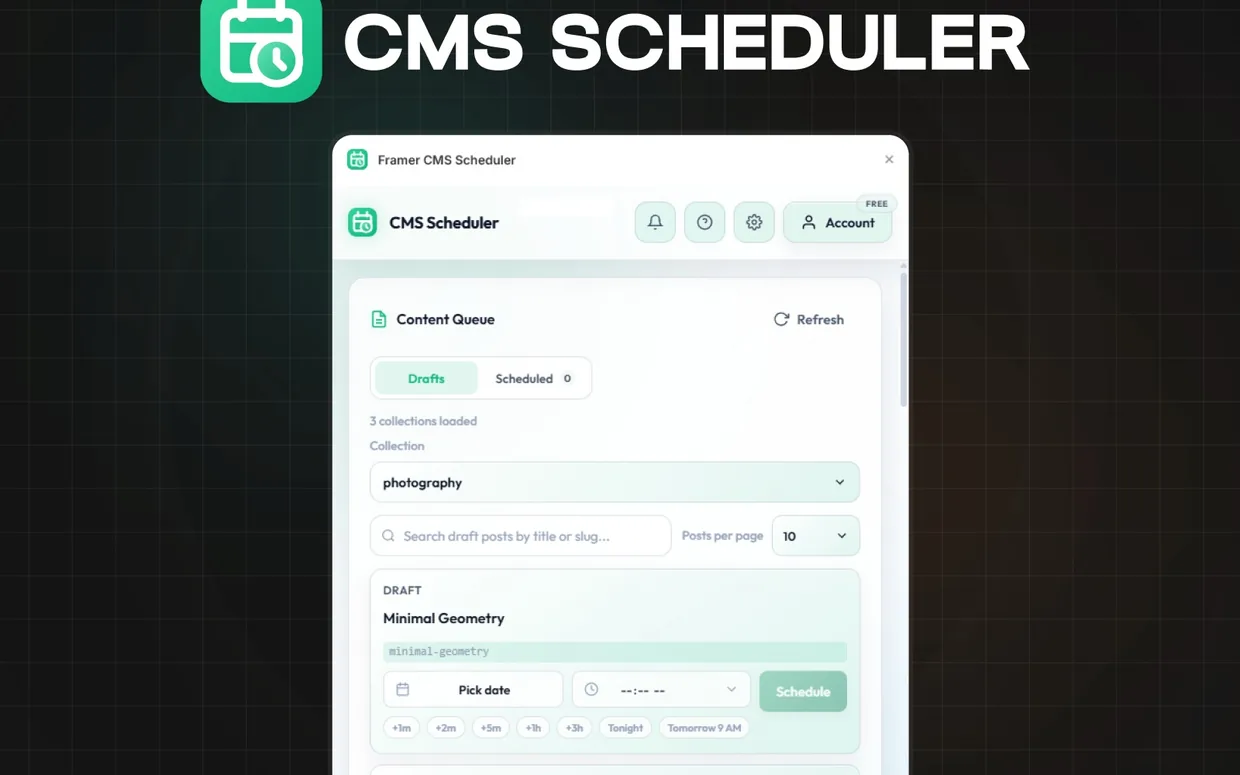
Framer lets you save CMS items as Drafts, and that is where native scheduling stops. When a client blog post, release note, or product announcement needs to go live Monday at 9:00 AM, someone has to open Framer at 9:00 AM and click Publish.
CMS Scheduler fixes that using Framer's Server API (which Framer currently lists as open beta). Write posts on Friday, pick a date and time for each draft or a whole batch, close your laptop, and they go live on schedule.
Before you set it up, read the one operational caveat every team needs to know first.
Key Takeaways
- Project-level publish caveat: when a scheduled post goes live, Framer deploys the entire site. Keep unfinished layout changes in a separate branch or staging project.
- Works only on Draft items: CMS Scheduler publishes drafts; it does not schedule already-published items, recurring schedules, or automatic unpublishing.
- Local timezone in, UTC stored: pick times in your own timezone and cancel any pending post up to 2 minutes before publish time.
- Free to start: 3 pending schedules in the queue on 1 project (slots free up as posts publish); Pro is $49/year (1 project) and Unlimited is $99/year (unlimited projects).
The One Caveat to Know Before Scheduling
A scheduled publish in Framer is a project-level publish and deploy, not an isolated single-post push. When CMS Scheduler undrafts your Monday 9:00 AM blog post and triggers Framer to deploy, any other unpublished canvas edits sitting on that same project go live with it.
Two clean habits avoid surprises:
- Finish and publish design tweaks before leaving scheduled posts in the queue, or do in-progress redesign work on a separate Framer branch / staging project.
- Group simultaneous launches into one timestamp. If three posts are due at 9:00 AM on the same project, CMS Scheduler undrafts all three and runs one site deployment instead of three separate builds.
 Write a month of journal posts in one sitting, set a date for each draft, and let them publish one by one.
What You Need Before Starting
- A Framer project with at least one CMS collection containing one or more Draft items.
- A Framer API key generated inside that project's settings (Site Settings → API Keys).
- A CMS Scheduler account (sign in with Google or email inside the plugin).
Your API key is stored encrypted at rest, decrypted only on the server when running your schedule, and deleted immediately if you disconnect the project.
Step 1: Install CMS Scheduler and Sign In
- Open your Framer project and click Plugins in the toolbar.
- Search for CMS Scheduler (or install it from the Framer Marketplace).
- Sign in with Google or your email and password.
Step 2: Connect Your Framer Project
- Open Settings inside the CMS Scheduler plugin.
- Paste your Framer project URL and the API key you created in Site Settings → API Keys.
- Click Connect Project.
Collections and draft items only load after the project connection succeeds. Note that if you disconnect a project later, any remaining queued schedules for that project are deleted as well.
Step 3: Schedule One Draft or a Batch
- Pick your CMS collection (for example,
Blog,Journal, orChangelog). - Select a draft item, or tick several drafts at once if you want a whole issue or campaign drop to publish together.
- Choose the publish date and time in your local timezone (at least 30 seconds in the future). CMS Scheduler records your IANA timezone and stores the run in UTC.
- Click Schedule.
You can close Framer completely. The backend checks the queue every minute and triggers the undraft and deploy when the timestamp arrives.
Step 4: Monitor Statuses, Cancel, or Retry
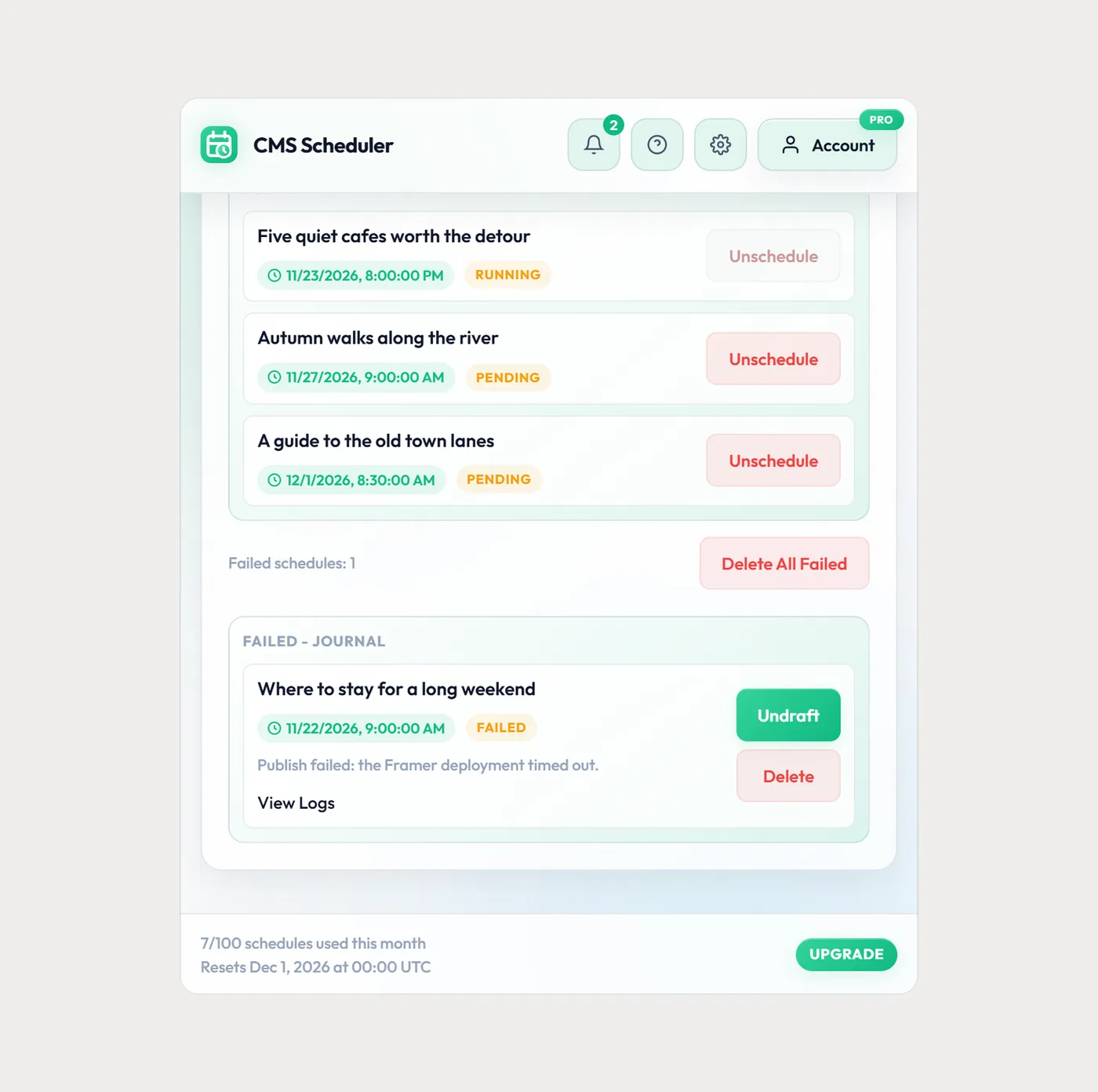 Track pending, running, and failed runs in the Scheduled tab, then unschedule or check the logs without leaving Framer.
Open the Scheduled tab inside the plugin to track every queued item across five statuses:
- pending: waiting in the queue. You can click Unschedule any time up until 2 minutes before publish time, when the button locks.
- running: currently undrafting and triggering the Framer deploy.
- published: live on your published site.
- failed: something blocked the publish (such as a revoked API key or missing required field). You receive a failure notification email, see the exact error under View Logs, and can retry or undraft manually. Failed runs also retry automatically with exponential backoff before stopping.
- canceled: unscheduled before publish time.
What CMS Scheduler Does Not Do
Keeping expectations clear saves time when scoping client builds:
- It schedules drafts only (already-live items do not appear in the draft picker).
- It does not auto-unpublish or expire posts on a future date.
- It does not run recurring schedules (such as repeating an item every Monday).
If you also need to clean up typos, old dates, or changed URLs across a collection before scheduling a batch of posts, pair it with CMS Find & Replace and read our guide to bulk-editing Framer CMS text. For deeper details on how Framer's Server API works under the hood, see our Framer CMS API guide.
Pricing Breakdown
| Plan | Price | Queue limit | Projects | Best for |
|---|---|---|---|---|
| Free | $0 | 3 pending schedules at once | 1 project | Solo blogs and testing on one site |
| Pro | $49/year | Unlimited pending schedules | 1 project | Active marketing sites and content teams |
| Unlimited | $99/year | Unlimited pending schedules | Unlimited projects | Freelancers and agencies managing multiple client blogs |
Remember that the free limit of 3 pending schedules is queue depth, not a lifetime cap. As soon as one post publishes, that slot opens for the next draft.
Stop setting 9:00 AM alarms to hit Publish
Schedule individual Framer CMS drafts or whole batches with queue status and failure logs. Free for up to 3 queued posts.

Shahul
Founder of FramerHub