Ask Your AI Assistant to Add a Framer Plugin for You (FramerHub MCP)
How Framer MCP and FramerHub MCP work together in 2026: connect Claude, ChatGPT, Codex, Cursor, or Antigravity to find templates, add Blockyard sections, and wire plugins cleanly.

Asking an AI assistant to build a Framer page from scratch gets you 80% of the way fast. The remaining 20% is where client projects stall: custom-generated code components break on mobile, every small change burns monthly Framer AI credits, and you end up maintaining bespoke React code across ten client sites.
Connecting your AI assistant over MCP (Model Context Protocol) solves that differently. Instead of generating fragile one-off code, your assistant connects to Framer MCP and FramerHub MCP, searches real tested templates, Blockyard sections, and components from your account, and drops working pieces straight into your workflow.
Key Takeaways
- Framer MCP (shipped by Framer in October 2026) lets external AI apps inspect and edit your Framer project; FramerHub MCP (
/mcp/connect) connects those same AI apps to your FramerHub templates, 100+ components, and 1,200+ Blockyard sections.- Works with Claude, ChatGPT, Codex, Cursor, and Antigravity (plus any remote MCP client via Bearer token).
- Free to connect with any FramerHub account; it only sees what you own and never publishes a site on its own.
- Pair MCP with Agent-ready templates (which ship a style page + written AI skills) so your assistant follows the project's exact design system instead of inventing random colors and spacing.
What MCP Actually Changes in a Framer Workflow
Without MCP, an AI assistant is blind to your library. You paste screenshots into chat, explain your CMS fields by hand, and copy generated React snippets back into Framer.
With FramerHub MCP connected:
- Your assistant searches FramerHub's catalog for the right niche template (for example, a boutique hotel, property management site, or Shopify skincare shop).
- It pulls matching Blockyard sections across 32 design systems so new pages match the site's visual language.
- It finds the right code component or plugin configuration without you hunting through old purchase emails or bookmarks.
- It keeps control in your hands: it tells you what it found or added, never accesses your password or payment info, and never publishes live changes without you.
Every FramerHub template from the new studio series ships with a design-system style page and written skills so your AI assistant edits inside the system.
Why Wire a Tested Plugin Instead of Vibe-Coding One?
You might wonder why you would ask an AI assistant to add a plugin instead of asking it to write a CMS filter, multi-step form, or Shopify cart from scratch.
| Task | AI writing custom code from scratch | AI wiring a tested FramerHub plugin |
|---|---|---|
| First draft | Fast on the canvas | Fast, configured from real properties |
| Adding a new filter or form field later | Re-prompt, spend AI credits, re-test code | Tick a field in the Properties Panel |
| Multi-field search, URL sync, cart checkout | Edge cases break easily on real data | Already tested across 2,000+ Framer users |
| Client handover | Client cannot safely touch generated code | Client edits CMS items and copy normally |
| Maintenance after Framer updates | You fix every client site yourself | Plugin updates roll out from one team |
Let AI do what it is great at (finding the right template, laying out sections from a real design system, drafting copy, and setting up initial structure) while relying on maintained plugins for filtering, forms, scheduling, and e-commerce.
Step 1: Connect FramerHub MCP to Your AI App
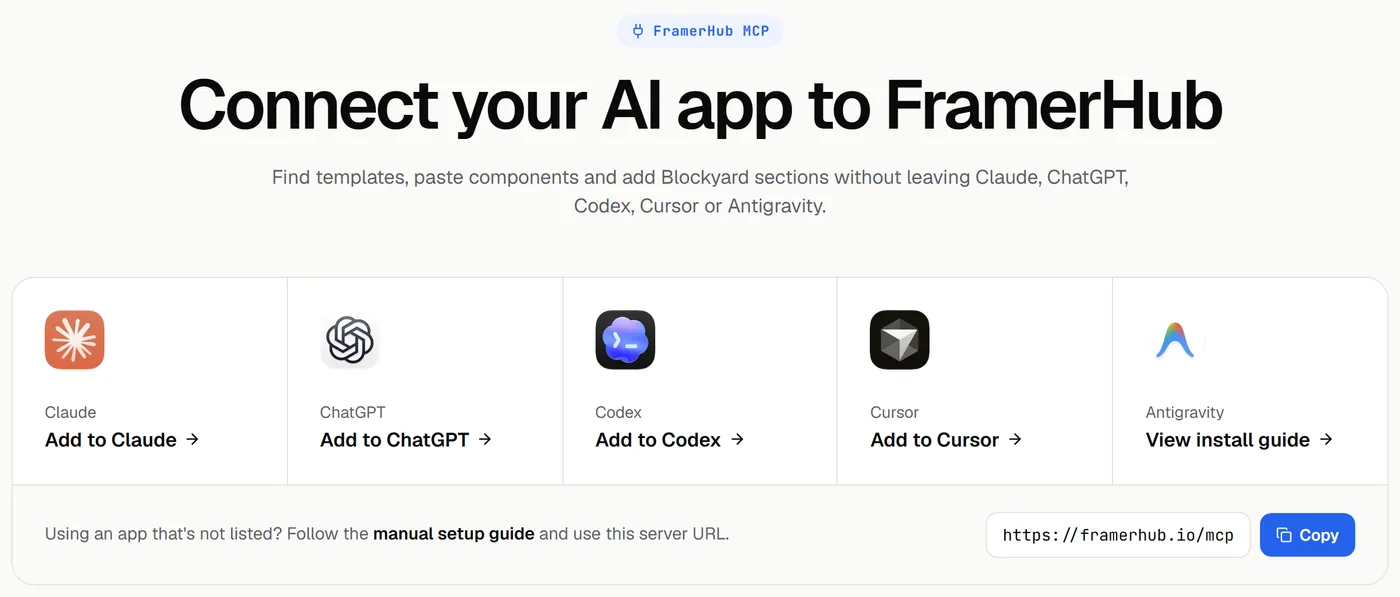 Connect Claude, ChatGPT, Codex, Cursor, or Antigravity from framerhub.io/mcp/connect in under a minute.
Open framerhub.io/mcp/connect. You have two connection methods depending on which app you use:
Option A: One-Click OAuth Setup (Claude, ChatGPT, Cursor)
- Go to /mcp/connect and click Add to Claude, Add to ChatGPT, or Add to Cursor.
- Sign in to your FramerHub account and approve the connection.
- Your app is now connected to
https://framerhub.io/mcpand shows up under Dashboard → Settings → Connections.
Option B: Manual Server URL + Bearer Token (Codex, Antigravity, Other MCP Apps)
If your client does not support browser OAuth login:
- On /mcp/connect, click Get a token and generate a personal MCP token while signed in.
- Paste the config block into your app's MCP settings file:
{
  "mcpServers": {
    "framerhub": {
      "url": "https://framerhub.io/mcp",
      "headers": {
        "Authorization": "Bearer YOUR_FRAMERHUB_TOKEN"
      }
    }
  }
}
- Restart your AI app. Treat your Bearer token like a password and revoke it anytime from Dashboard → Settings → Connections.
Step 2: Try Plain-English Prompts That Actually Work
Once connected, skip vague prompts like "make my site better." Name the page, the niche, and the exact part you want:
- Finding a client template: "Find a boutique hotel template in FramerHub with a booking inquiry form and list its pages and CMS collections."
- Adding Blockyard sections: "Add a 3-tier pricing section and an FAQ section from Blockyard in the same design system as this page."
- Scoping CMS filtering: "We have a recipe collection with dish type, cooking time, and diet fields. Set up CMS Filter with URL sync so readers can share filtered links."
- Wiring a booking form: "Build a 3-step discovery-call form on /contact with Form Kit: contact details, project type, and a conditional budget field for new builds."
- Tuning code overrides cleanly: Pair Framer's agent or Claude with our free Override Controls skill so any custom motion override your assistant writes automatically exposes sliders, toggles, and color-style pickers instead of raw numbers buried in code.
Step 3: Stay in Control and Manage Connected Apps
FramerHub MCP respects your account boundaries:
- Read/use only what you own: free items work immediately; paid templates, components, and Blockyard sections unlock automatically if you own them individually or hold All Access / Agency Stack.
- Revoke in one click: open Dashboard → Settings → Connections and click Remove access next to any connected app (or revoke a Bearer token) to cut access immediately.
- Review before publishing: treat every AI-assisted edit like a teammate's pull request. Preview desktop, tablet, and phone breakpoints before hitting Publish.
If you also want your published Framer client sites to be discovered and cited accurately by ChatGPT and Perplexity, pair this workflow with our llms.txt for Framer guide.
Connect your AI app to FramerHub in one minute
Free with any FramerHub account. Works with Claude, ChatGPT, Codex, Cursor, and Antigravity.

Shahul
Founder of FramerHub
More AI assistant guides

AI ASSISTANT9 min read
llms.txt for Framer: Get Cited by ChatGPT and AI Search
Add llms.txt to a Framer site through Site Settings, then wire schema and content structure so ChatGPT, Perplexity and Gemini can quote you.