Show WooCommerce Products on a Framer Site
Keep WordPress and WooCommerce for orders, taxes, and checkout while designing the storefront freely in Framer. Step-by-step setup with FrameWoo and honest caveats.
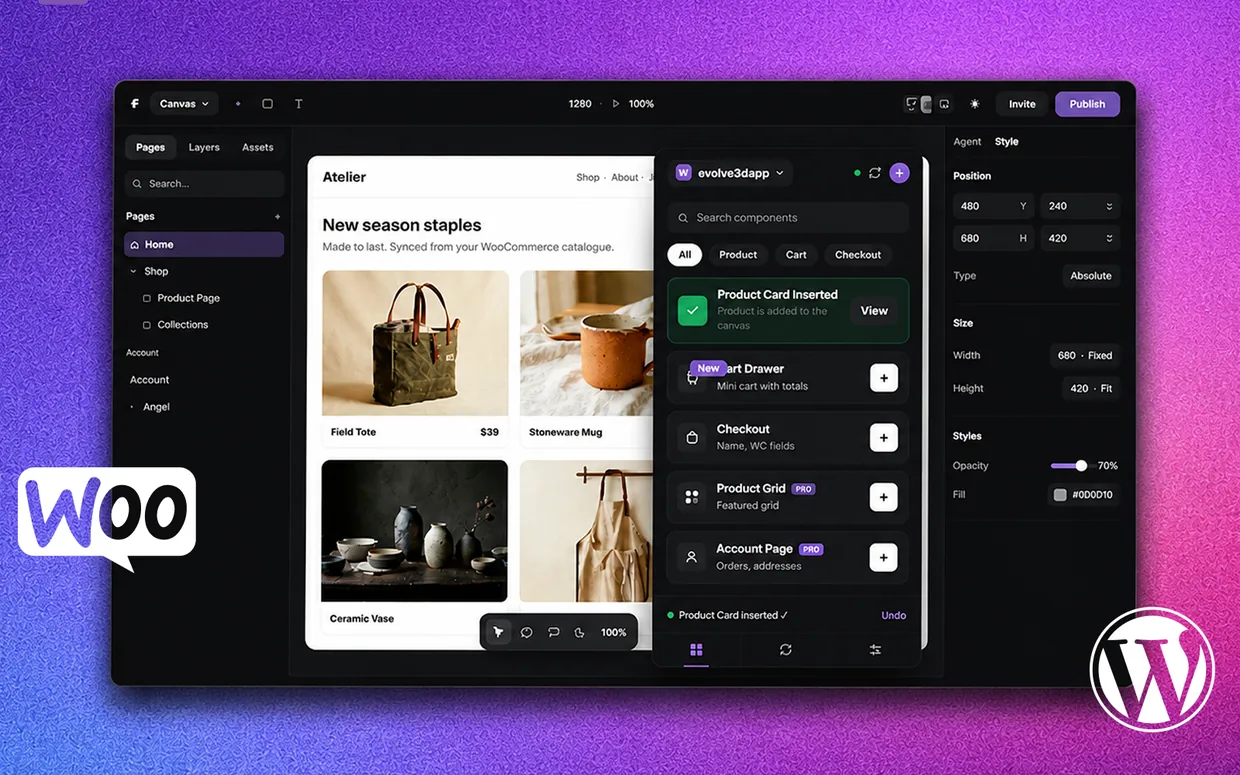
Plenty of established businesses already run their inventory, shipping zones, tax rules, and payment gateways on WooCommerce. They do not want to migrate five years of order history onto Shopify. What they want is a fast, custom-designed storefront without fighting a slow WordPress page builder.
Framer does not connect to WooCommerce natively. A basic free WooCommerce-to-Framer sync plugin exists if you only need a minimal product feed. When you need a full custom storefront (product galleries, variant selectors, a cart drawer with coupons, live filters, and customer accounts), FrameWoo handles the connection while leaving WooCommerce in charge of every order.
Key Takeaways
- Split architecture: Framer renders your shop pages from Framer's CDN; WordPress + WooCommerce keeps products, stock, coupons, shipping, taxes, payments, and orders.
- Custom Framer fields survive re-syncs: add care guides, size charts, or editorial photography in Framer CMS without losing them when WooCommerce updates.
- Client workflow stays familiar: clients still edit products in WordPress and click Deploy to Framer from the WordPress admin bar (or run auto-sync on Scale).
- Pay once per store: Free covers 1 store up to 15 products; Launch is $149 one-time and Scale is $349 one-time, with licence transfer to the client included.
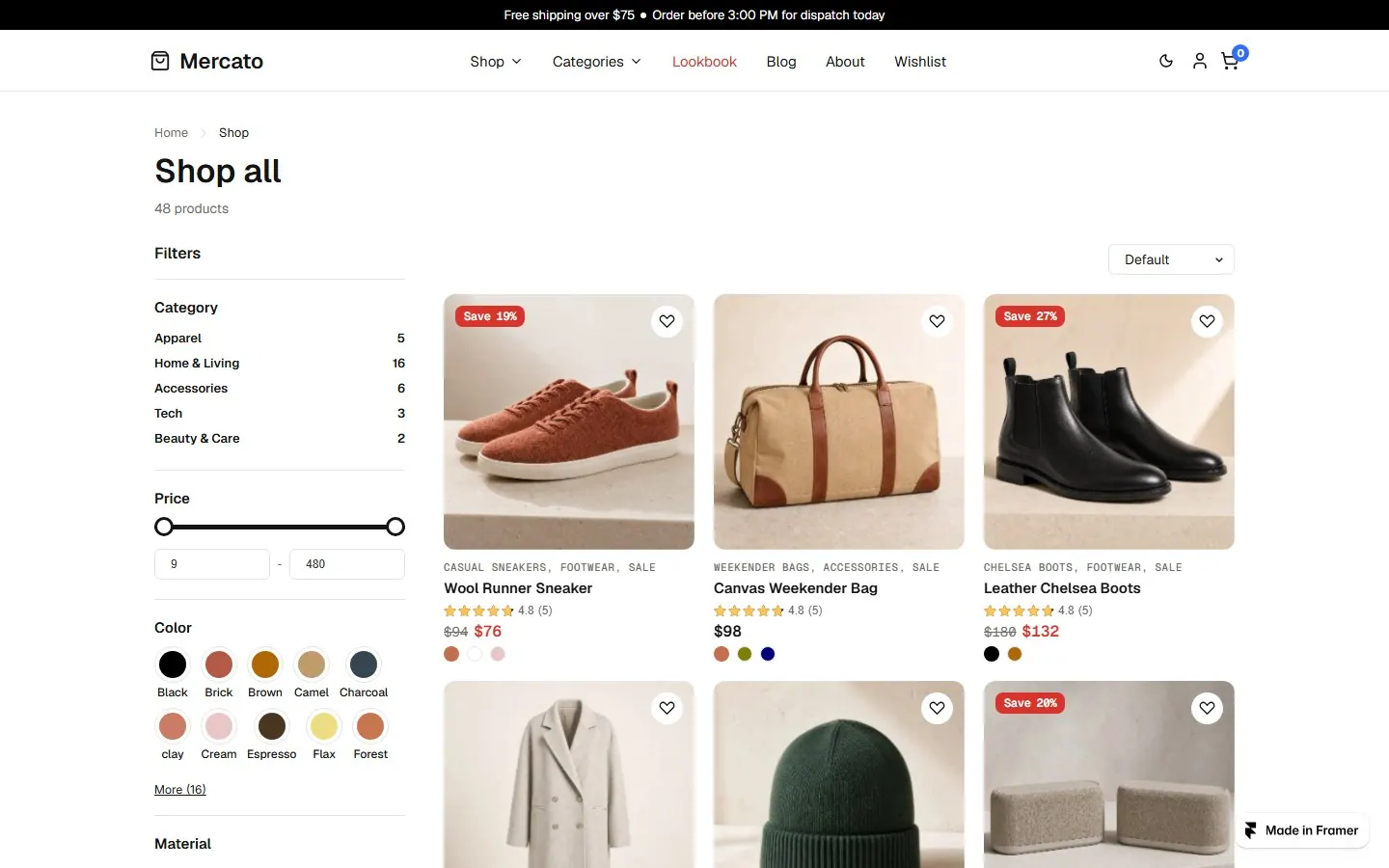 Mercato, the FrameWoo demo store: category counts, price range slider, color swatches, sale badges, and live WooCommerce reviews styled directly on the Framer canvas.
How Framer + WooCommerce Works Together
You only replace the visual front end. Your client's operational backend stays untouched:
- WooCommerce stays the source of truth for SKUs, prices, sale prices, variants, stock status, categories, reviews, coupons, and orders.
- FrameWoo syncs the catalog into Framer CMS using the WooCommerce API, generating a real Framer page for every product on your domain.
- FrameWoo commerce components power the interactive layer (variant pickers, add-to-cart buttons, slide-out cart drawer, wishlist, and customer account pages).
- Checkout hands off to WooCommerce, so Stripe, PayPal, local bank gateways, VAT/sales tax rules, and shipping integrations work the same way they did before.
If your client is still choosing between WooCommerce, Shopify, and simple payment links, compare all five options first in our Framer ecommerce guide or read Framer vs WordPress.
What You Need Before Starting
- A live WordPress site running WooCommerce over HTTPS (avoid local-only localhost WordPress installs while testing sync).
- A Framer project on a plan that supports enough CMS items for the client's product count (check our Framer pricing guide for current Basic and Pro CMS item caps).
- A clear decision on URL structure (for example, Framer on
store.comand WordPress/WooCommerce checkout onshop.store.comorcheckout.store.com).
Step 1: Connect Your WooCommerce Store in FrameWoo
- Install FrameWoo in your Framer project and sign in.
- Enter your WooCommerce store URL and API connection details inside the plugin setup screen.
- Run the connection test to confirm FrameWoo can read your catalog and Store API endpoints cleanly.
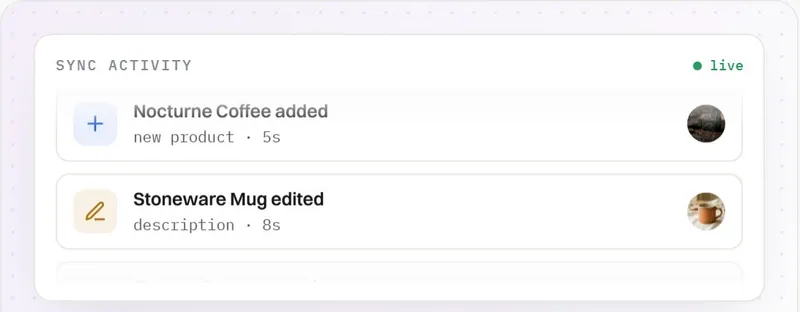 Connect your WooCommerce store once and pull products, variants, prices, stock, and categories straight into Framer CMS.
Step 2: Sync Products and Add Framer-Only CMS Fields
Run your first sync inside Framer CMS. FrameWoo creates and populates the managed product collection with titles, descriptions, prices, sale prices, variants, images, categories, and stock status.
Need editorial blocks that WooCommerce does not store well, such as lookbook photos, care guides, or material specs? Add custom fields directly to the Framer CMS collection. Those custom Framer fields survive future product re-syncs without getting overwritten.
On the Free plan, up to 15 products sync with manual sync, which is plenty to build a working prototype and get client sign-off before buying a store licence.
Step 3: Build the Shop Grid and Product Detail Page
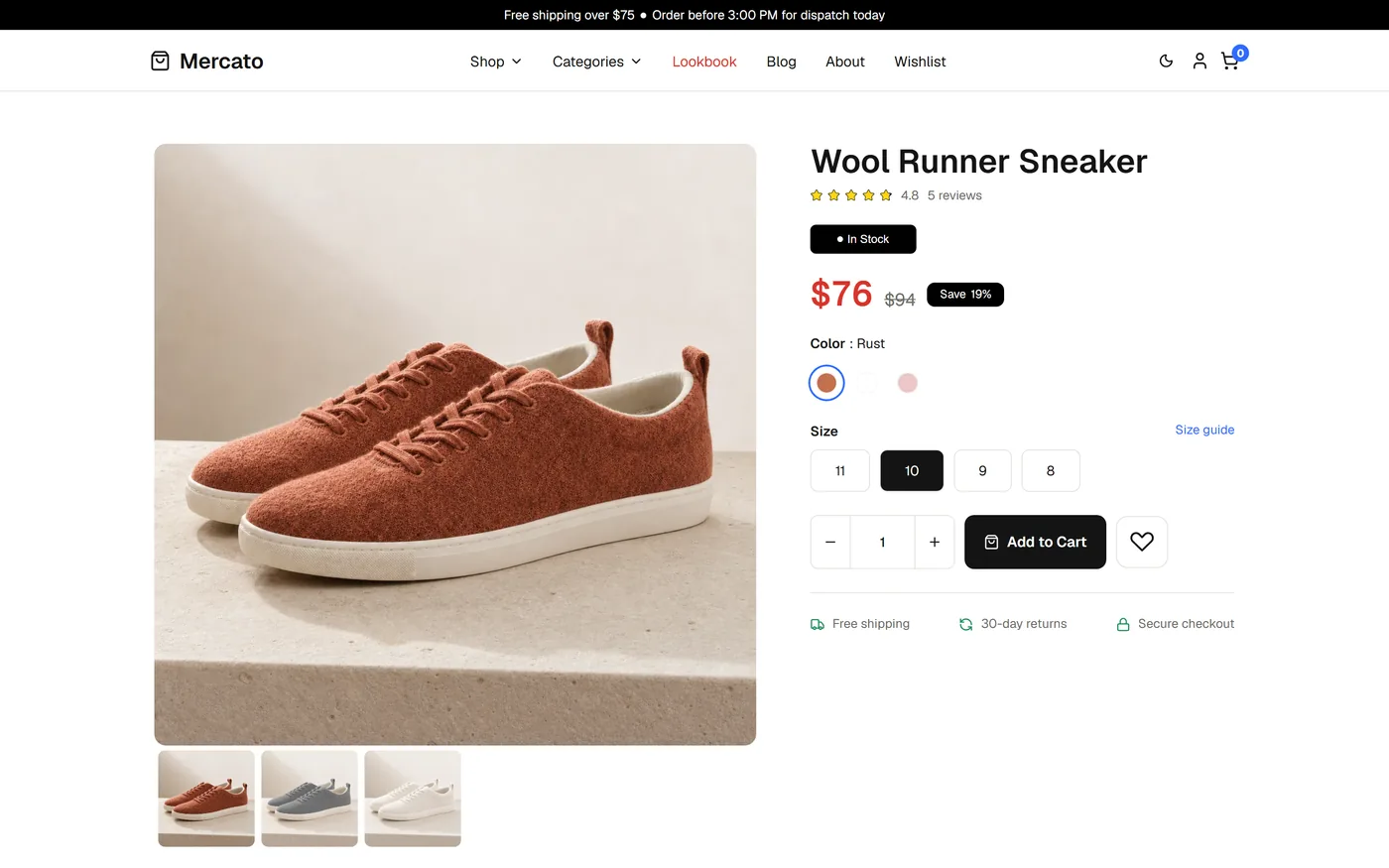 Each synced WooCommerce product gets its own Framer CMS detail page with live variant pricing and stock.
Open the FrameWoo component panel inside Framer and drop commerce parts onto your /shop page and /shop/:slug CMS detail template:
- Product card & gallery: binds automatically to synced product images, titles, sale badges, and live WooCommerce star ratings.
- Variant selector: switches sizes, colors, price, and stock availability live from WooCommerce.
- Add to Cart + Cart Drawer: includes quantity controls, coupon codes, a free-shipping progress bar, and cross-sells on Launch and Scale plans.
- Shop filters (Scale): filter by category with live item counts, color swatches, price range slider, keyword search, and sort order.
- Customer accounts (Scale): shoppers sign in on your Framer storefront to view order history, manage addresses, save wishlists, and submit refund requests without ever seeing a WordPress login screen.
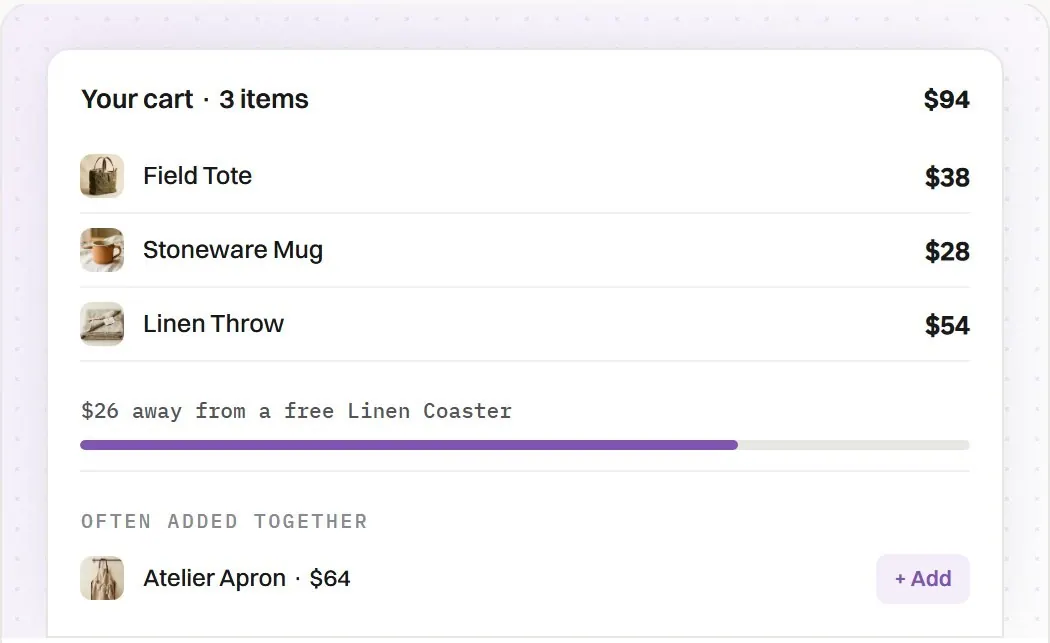 The FrameWoo cart drawer runs directly inside your Framer design with coupons, free-shipping progress, and checkout handoff to WooCommerce.
Step 4: Set Up the Client's Day-to-Day Update Flow
Walk your client through how product edits work before launch day:
- They add a new product, change a price, or update stock inside WordPress → Products, exactly as they always have.
- They click Deploy to Framer in the WordPress admin bar (or let auto-sync handle it on the Scale plan).
- Framer updates the catalog and publishes the live storefront automatically.
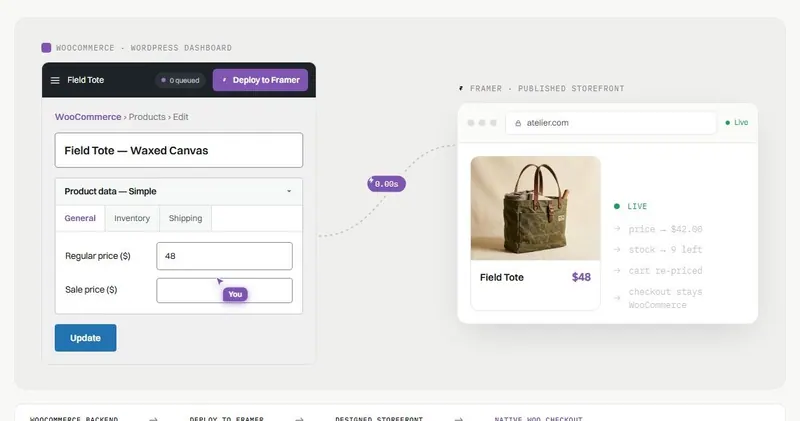 Clients keep managing products in WordPress and click Deploy to Framer when they want catalog updates pushed to the live site.
Step 5: Test Checkout, Extensions, and SEO Before Launch
Run five checks before switching DNS:
- Complete a real test order from Framer product page → variant change → coupon code in cart drawer → WooCommerce checkout → order confirmation email.
- Test every essential WooCommerce extension (local payment gateways, dynamic shipping rates, tax calculation). Backend and checkout plugins usually work; WordPress theme-only plugins that inject front-end shortcodes will not appear inside Framer.
- Prevent duplicate indexing: keep your public store pages indexed on the Framer domain (
store.com/shop/...) and setnoindexon the WordPress subdomain's storefront pages (checkout.store.com/product/...) so Google does not index two versions of every product. - Verify mobile cart usability on a 390px phone screen, especially sticky add-to-cart bars and cart drawer scroll behavior.
- Confirm licence ownership: FrameWoo licences cover one published store and can be transferred directly to the client at handover.
FrameWoo Pricing Overview
| Plan | Price | Products | Key features |
|---|---|---|---|
| Free | $0 | Up to 15 products (1 store) | Manual sync, variants, cart, starter components, WooCommerce checkout |
| Launch | $149 once | Unlimited products (1 store) | Cart drawer, coupons, free-shipping bar, 1 starter template, badge removed, lifetime updates |
| Scale | $349 once | Unlimited products (1 store) | All 100+ components, customer accounts, refund requests, wishlist, filters, search, sort, auto-sync |
All paid plans include lifetime updates and a 14-day money-back guarantee. Agencies building multiple stores can also get FrameWoo for 5 stores inside Agency Stack.
Design your client's WooCommerce storefront in Framer
Sync products into Framer CMS, style every page with 100+ commerce components, and keep orders, taxes, and checkout in WooCommerce.

Shahul
Founder of FramerHub
More E-commerce guides

E-COMMERCE9 min read
How to Connect Shopify to Framer: Step-by-Step Guide (2026)
Connect Shopify to Framer step by step: the Buy Button for a few products, a Shopify plugin for a full storefront synced to Framer CMS, or a custom Storefront API build.

E-COMMERCE13 min read
Framer Ecommerce: Shopify vs WooCommerce vs Simple Checkout (2026)
Framer has no native store. Compare every real way to sell on a Framer site in 2026: Shopify plugins, WooCommerce, Buy Button embeds, and simple checkout links.