Framer Dynamic Filters Guide: Where Native Filtering Stops
 Shahul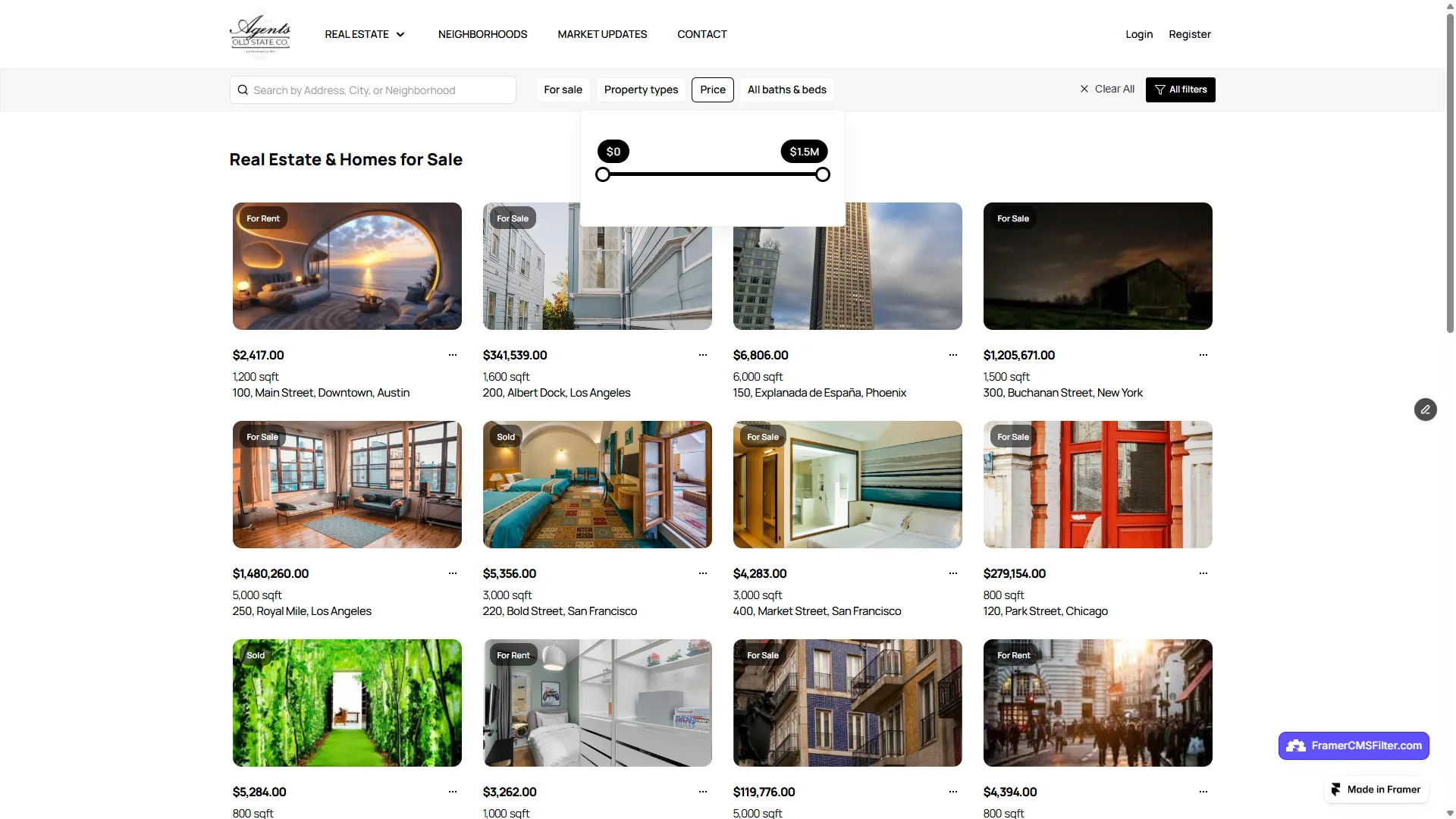
You got the brief. Real estate listings. A car marketplace. A job board. A directory with 200+ items.
The client wants filtering like Amazon. Price range slider. Filter by location. Filter by type. All at once. Remove one filter without clearing the rest.
You open Framer, find framer dynamic filters in the CMS panel, and start wiring things up. For one dropdown, it works great. Then you try to combine search, sort, and a price range at the same time. That's where things stop.
This guide covers what native Framer Dynamic Filters actually do well, how to set them up step by step, and what to reach for when your project needs more than a single dropdown.

What are Framer Dynamic Filters?
Framer Dynamic Filters are native filtering controls that shipped in early 2026. They let you connect CMS fields to page variables. When a visitor clicks a tab or types in a search box, the collection list updates instantly without a page reload.
The core idea is simple:
- A CMS field (category, tag, location, price) binds to a page variable
- A filter control (dropdown, tab, search input) updates that variable when a visitor interacts
- The collection list re-renders showing only items that match the variable value
The key shift from older Framer filtering: no variants. Before Dynamic Filters, showing filtered states meant creating a separate variant for each filter combination. Five categories times four price tiers equals 20 variants to build and maintain. One CMS update meant touching 20 frames. Dynamic Filters eliminated that entirely.
Filter controls are also not tied to the collection list's position. You can place a search bar in the header, tabs in a sticky nav, and a checkbox group in a sidebar. All of them control the same collection. That layout flexibility matters for real site designs.
For a deeper look at how Framer's CMS system works overall, the
The 5 native filter types in Framer
Framer ships five filter control types. Each covers a different interaction pattern.
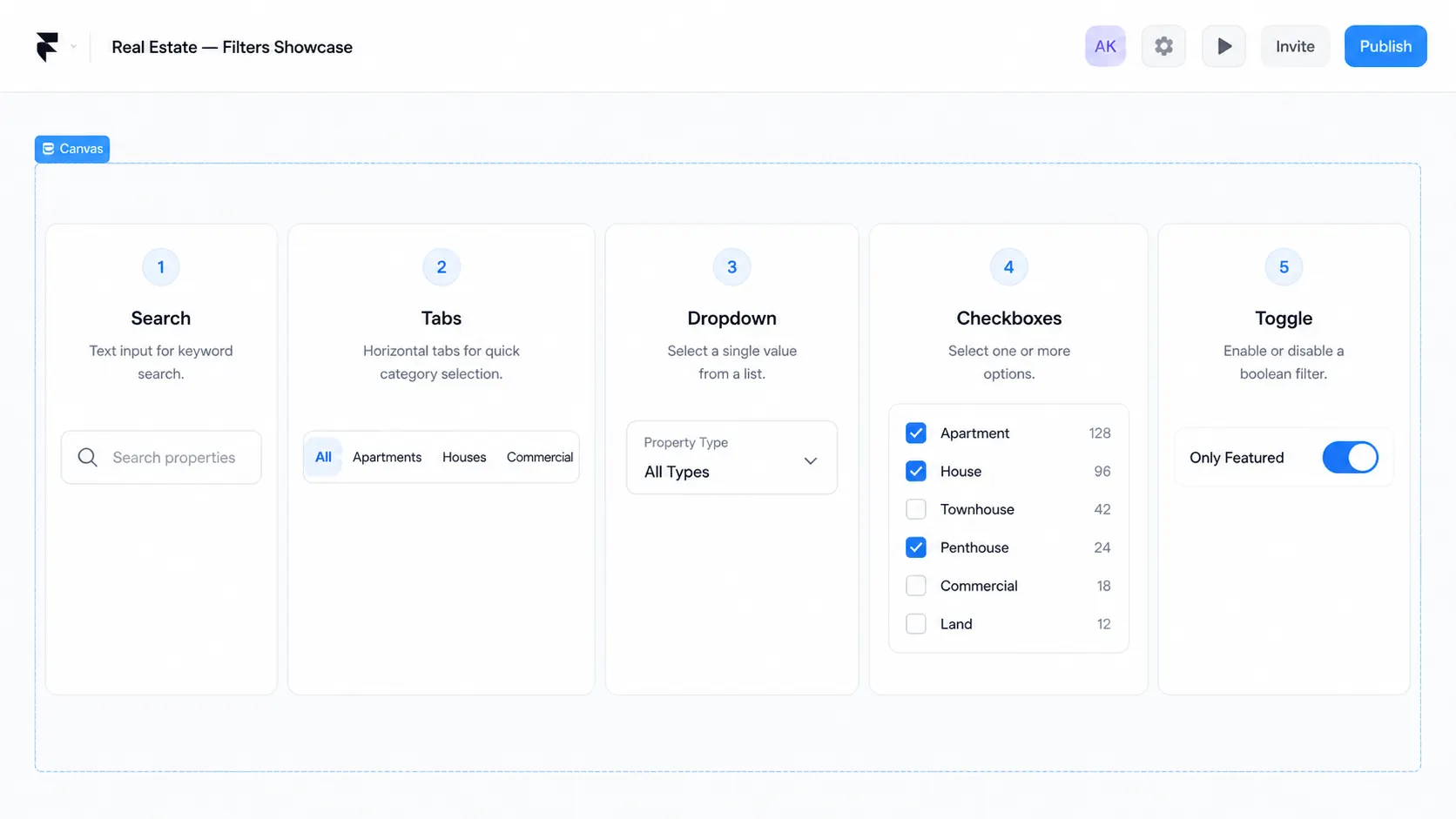
Search field
A text input that filters the collection as the visitor types. Matches against one CMS text field (title, name, or description). Real-time updates, no submit button needed.
Works well for: blog archives, team directories, simple resource libraries.
Dynamic tabs
Horizontal pill or tab-style buttons. Each button represents one value from a CMS option field. Clicking filters to that value.
Works well for: category switching on portfolios, product type filters on simple sites, "All / Beginner / Advanced" on course libraries.
Dropdowns
A select menu. Visitor picks one value from a CMS option field.
Works well for: location filters, single-value attribute selectors, industry or sector filters.
Checkboxes
Multi-select. Visitors pick several values and see results matching any selected option. OR logic within the filter.
Works well for: tag filters, feature filters, multi-category filtering where OR logic is acceptable.
Toggles
Boolean control. Shows or hides items based on a true/false CMS field. Think "Remote only," "Featured," or "Available now."
Works well for: availability states, featured-item highlights, boolean attribute filtering.
How to set up Framer Dynamic Filters: step by step
Setting up native filters takes under ten minutes on a clean project.
Step 1: Build your CMS collection
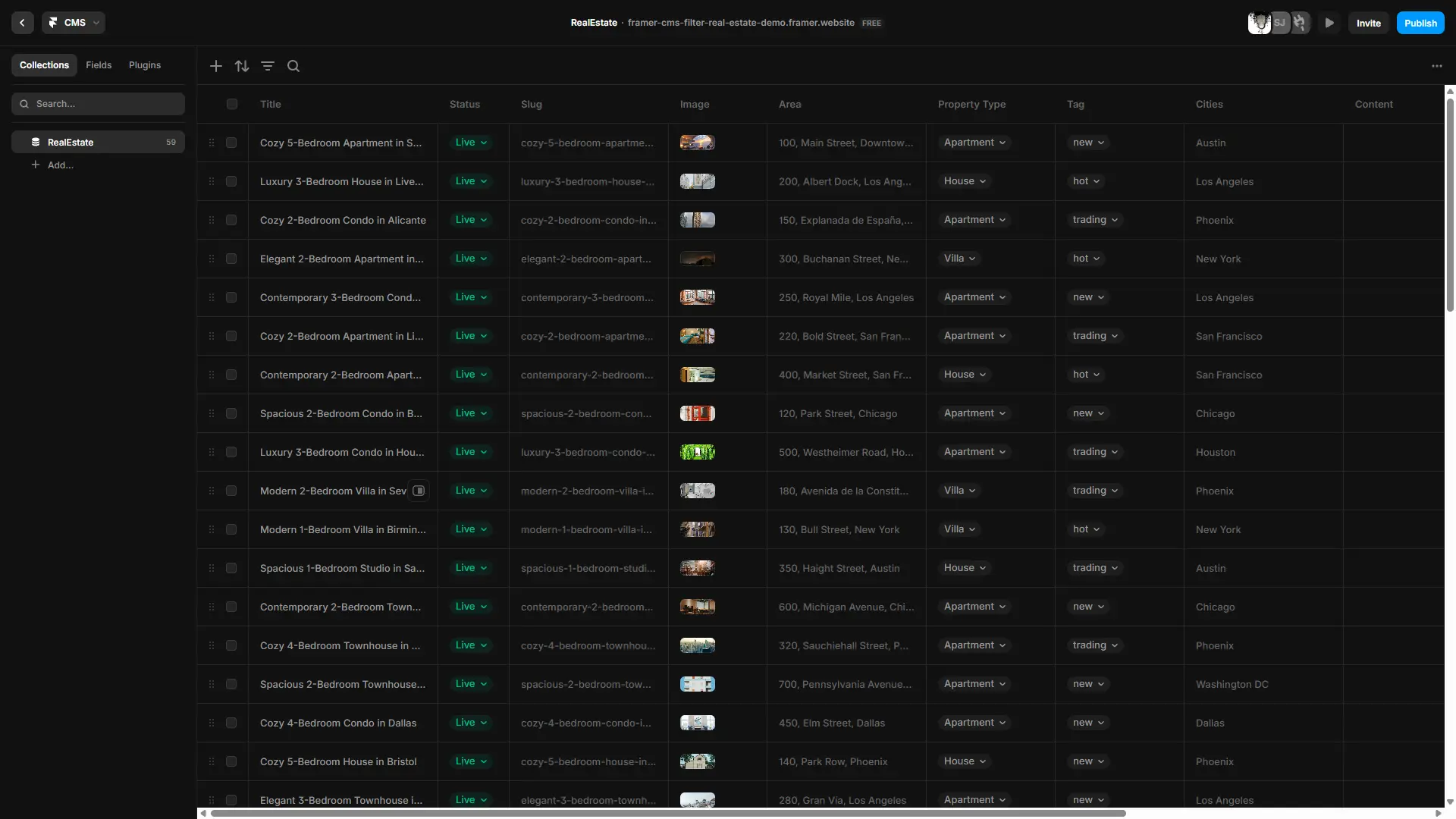
Open the CMS panel. Create or select a collection. Confirm you have the right field types: option fields for tabs, dropdowns, and checkboxes; text fields for search; boolean fields for toggles.
Step 2: Add a Collection List to your canvas
Drag a Collection List onto your page. Connect it to your collection. Design the item card.
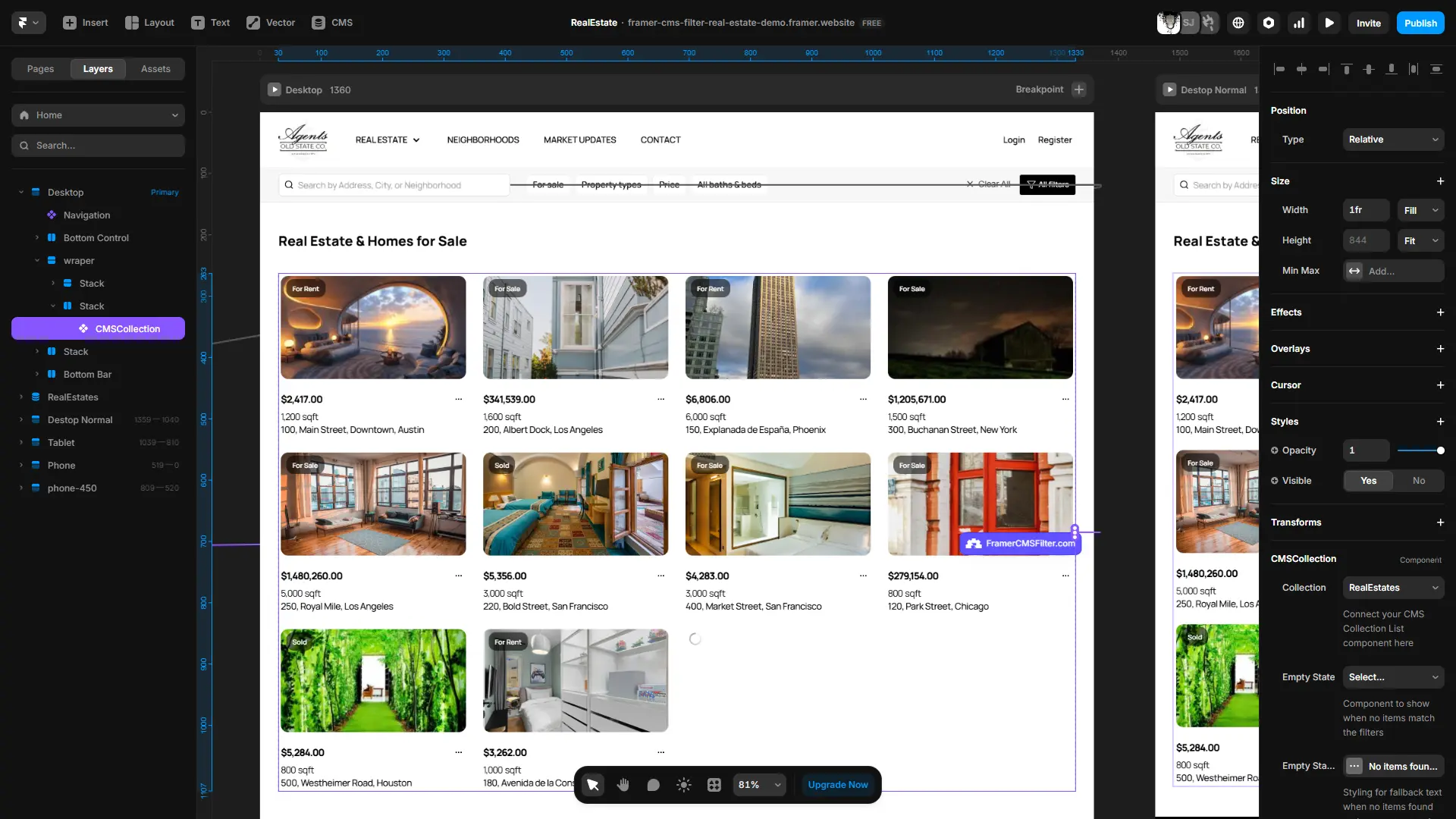
Step 3: Open the Filters panel
Select the Collection List. Open the right sidebar and find the Filters tab.
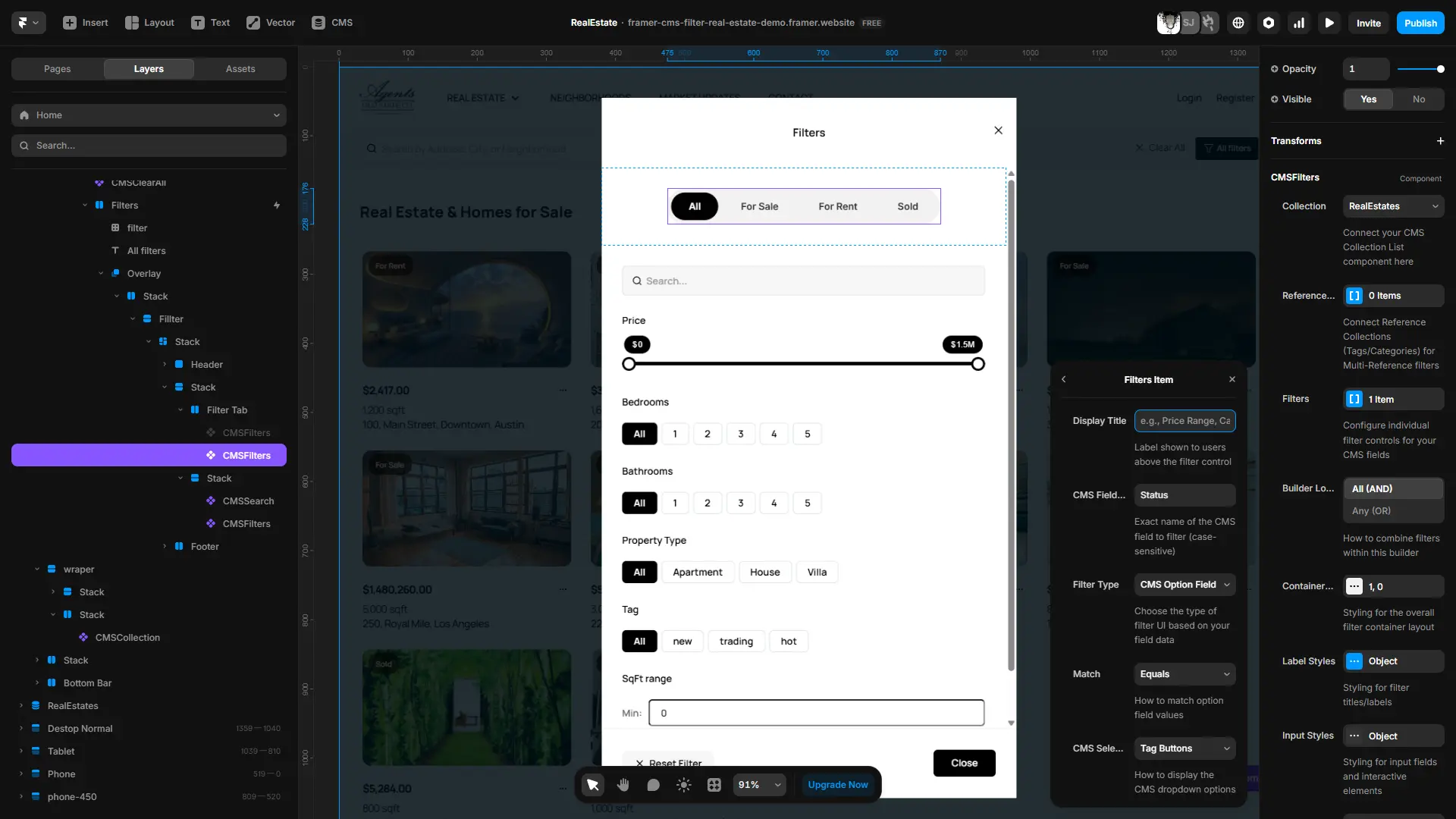
Step 4: Add a filter
Click "Add Filter." Pick a type. Select the CMS field it should operate on. Framer creates a filter control and a page variable automatically.
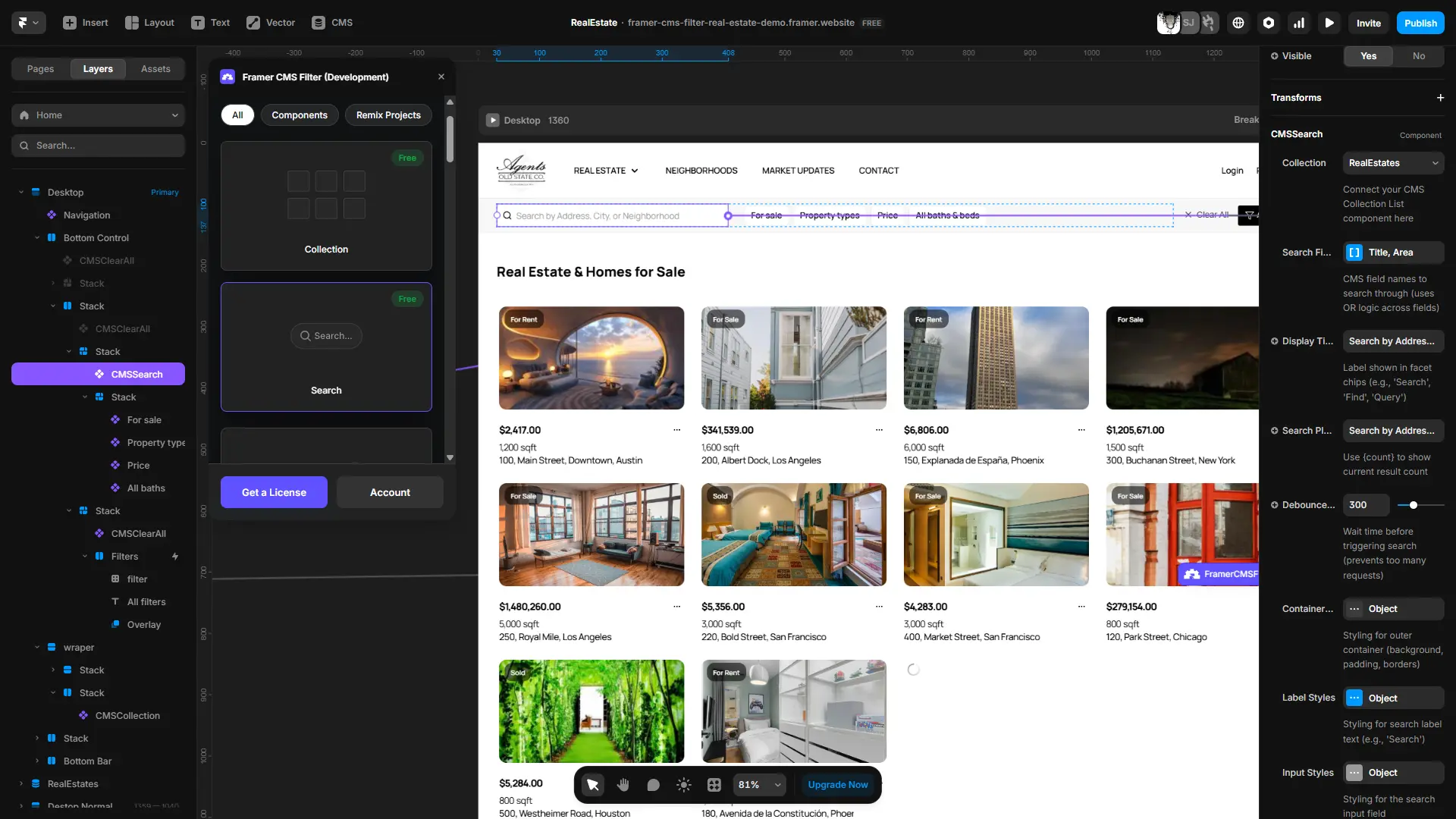
Step 5: Place the filter control
The control appears as a layer. Move it wherever your design needs it: above the collection, in a sidebar, in the header. It's decoupled from the collection list.
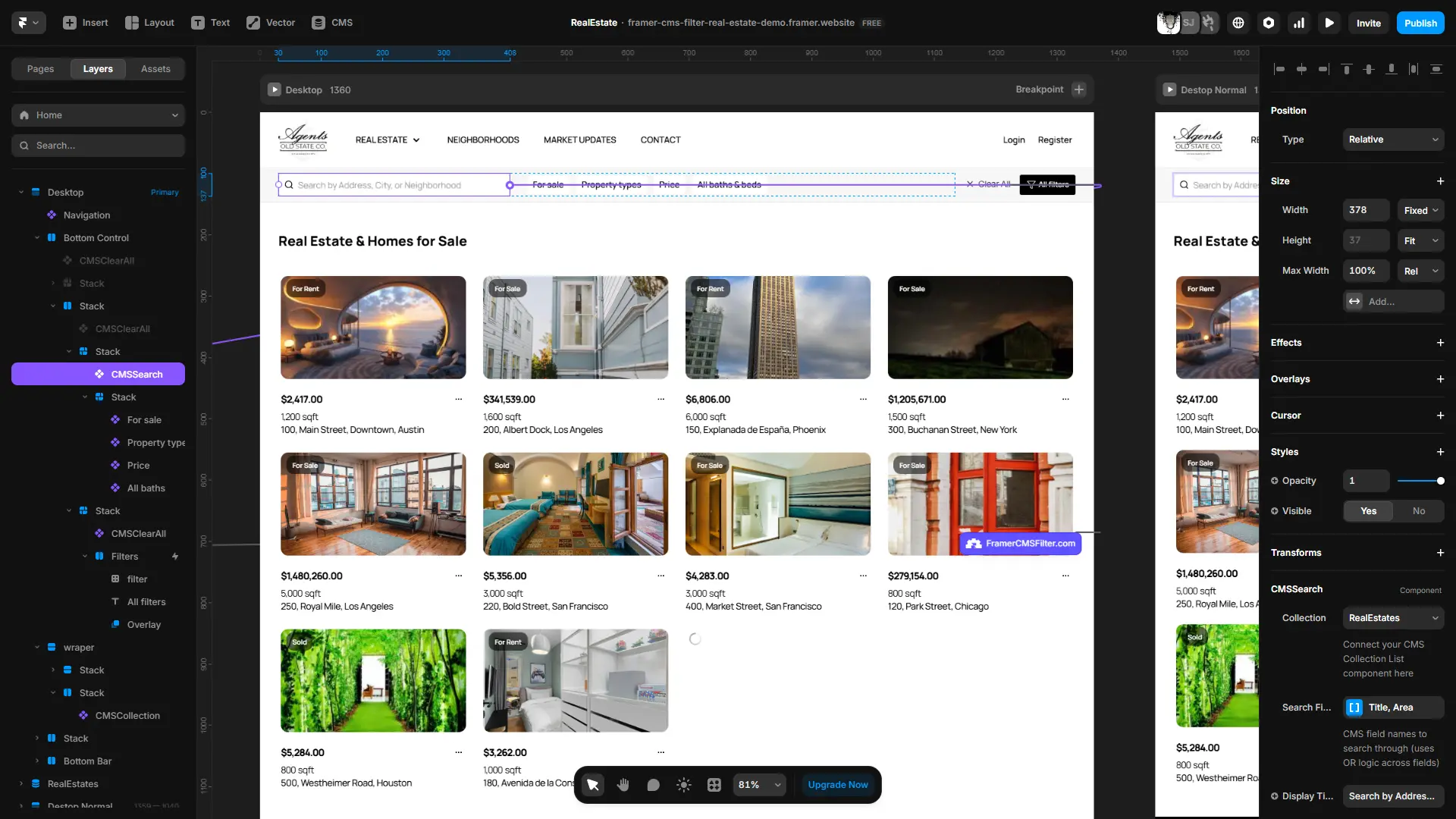
Step 6: Add more filters
Repeat Steps 4 and 5 for each filter field. Multiple filters stack as AND logic by default. Each active filter narrows the collection further.
Step 7: Preview and test
Use Preview mode (Cmd+P or Ctrl+P). Click your filter options, type in the search field, confirm the collection updates correctly.
That's the full native setup. For a single-filter use case on a small collection, this is all you need.
Where native Framer Dynamic Filters work well
Native filters are the right tool when your use case is genuinely simple.
Blog with category tabs. Ten posts, five categories. Visitors click a tab to see posts in that category. One filter, one option field, done.
Portfolio with project type filter. A designer's portfolio with a dropdown to filter by industry. Clean, fast, no maintenance.
Team page with department filter. Department tabs on a small team directory. One filter dimension.
Simple resource library. A collection of 30-50 resources with a category dropdown.
In all these cases, native Dynamic Filters do the job. Adding a plugin would introduce unnecessary complexity. Use the simpler tool.

Where native filters fall short for real CMS sites
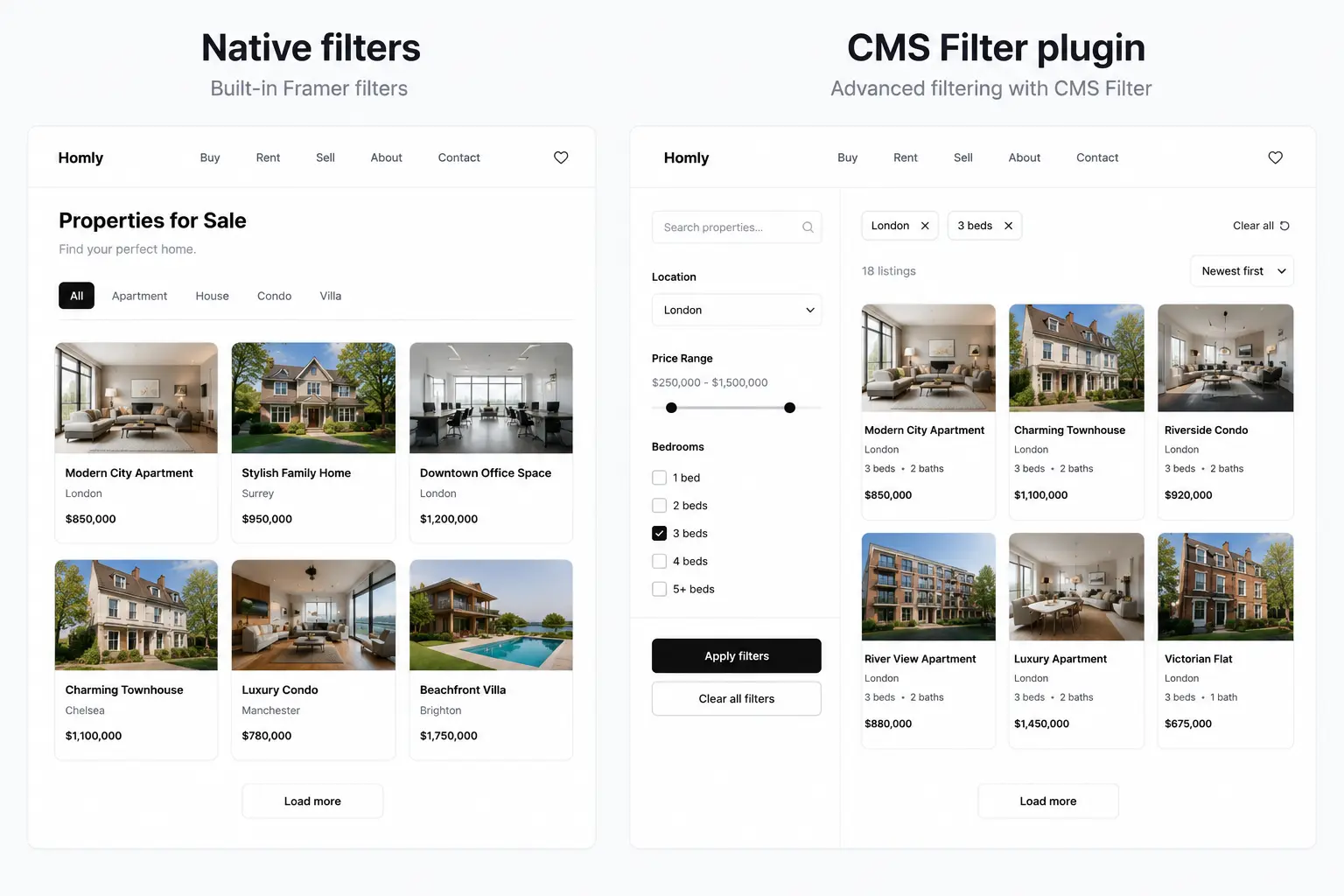
This is where the gap becomes visible. These are not edge cases. They're standard requirements for directories, job boards, real estate listings, car marketplaces, and any serious listing site.
I've seen Framer designers hit this same wall. You start with one dropdown, it works great. Then the client says "I want a price range filter like Amazon." Or "users need to filter by location AND property type AND bedrooms all at once." Or you try to build a desktop sidebar that stays in sync with a mobile drawer. That's where native filtering stops.
Multi-field search
Native search matches against one CMS text field. If your job board has a title, description, company name, and tags, visitors can only search one field. They type "product designer" and only the title is searched. Matching descriptions and tags are invisible.
The
Sorting
Native Dynamic Filters have no built-in sorting. Visitors can't sort by price, date, relevance, or name. For any collection where order matters to the visitor, this is a hard gap.
Active filter chips users can remove
When a visitor applies three filters, native Framer shows nothing that tells them what's active. No chips. No "you're viewing: Remote / Design / London." They can't remove one filter without clearing everything.
Active filter chips are standard UX on any real filtering experience. They communicate what's applied and let visitors refine without starting over. That's the "filter by location, price, and type all at once, then remove just the price filter" experience clients ask for.
Result counts
Knowing there are "14 results" before clicking a filter helps visitors make better decisions. Native Dynamic Filters don't display a result count. The CMSCount component that updates in real time as filters change.
Clear-all
Native filters don't ship a coordinated clear-all control. You can wire one manually via page variable resets, but it's custom work. The plugin includes a CMSClearAll component that resets all active filters in one click.
Synchronized filter groups across layouts
This is the one native filters can't solve. Real responsive sites often need:
- A top bar with Location and Category filters on desktop
- A sidebar with Price Range and Bedrooms
- A mobile drawer with all of the above in a different layout
Native page variables can drive one control per filter. They can't keep a sidebar checkbox and a mobile drawer checkbox synchronized when they both represent the same filter. The CMS Filter plugin is built around a shared-state architecture: multiple controls coordinate through a storeKey. Desktop sidebar and mobile drawer stay in sync automatically.
Price range sliders
Native Framer supports option fields, text, and booleans. Range filters (price: $500k to $1M, area: 1,000 to 2,500 sq ft) require a range slider with dual handles. Native filtering doesn't provide that. The plugin includes dual-handle range sliders with min/max values and unit formatting.
Filtering on reference fields
Real CMS models use reference fields. A job board where each posting references a Company item. A directory where each listing references a Category item. Native Dynamic Filters work cleanly with option fields. Filtering on single-reference and multi-reference fields is where the native system runs thin. The plugin handles both.
Need filtering past the native baseline?
CMS Filter adds multi-field search, range sliders, facets with counts, sorting, result counts and synchronised filter groups to any Framer CMS collection.
Native vs CMS Filter plugin: comparison table
| Capability | Framer Native | CMS Filter Plugin |
|---|---|---|
| Search (single field) | Yes | Yes |
| Multi-field search | No | Yes (CMSSearch, debounced across several fields) |
| Tabs, dropdowns, checkboxes, toggles | Yes (5 types) | Yes |
| Match operators (contains, starts with, is set, and so on) | No | Yes (8 text, 8 number operators) |
| Number and price range filtering | No | Yes (dual input and slider) |
| Date range filtering | No | Yes (CMSDateRangeToggle) |
| Sorting | No | Yes (CMSSort, CMSSortToggle) |
| Facets with option counts | No | Yes (CMSFacets, auto-detected from CMS enum fields) |
| Active filter chips users can remove | No | Yes |
| Active filter count | No | Yes (CMSActiveFilterCount) |
| Result count display | No | Yes (CMSCount) |
| Clear-all button | No (manual workaround) | Yes (CMSClearAll) |
| Pagination / prev-next | No | Yes (CMSPagination, CMSPrevNext) |
| Saved favourites | No | Yes (CMSFavoriteButton, CMSFavoriteItems) |
| Synchronized filter groups | No | Yes (top bar, sidebar, mobile share one store) |
| AND/OR logic across filters | AND only | Composed at three levels: per filter, per builder, per collection |
| Single-reference field filtering | Limited | Yes |
| Multi-reference field filtering | Unpredictable | Yes |
| Shareable URL parameters for a filtered state | Yes, driven by the page variables behind each filter | Yes, one urlSync toggle on CMSCollection |
For small collections with simple filter needs, native is the right starting point. For directories, real estate listings, job boards, marketplaces, and resource libraries, the plugin covers what native doesn't.
Real projects that need more than native filtering
These are the project types where native filtering hits its limits fast. They're also the exact use cases where the CMS Filter plugin was built to deliver.

Real estate listings
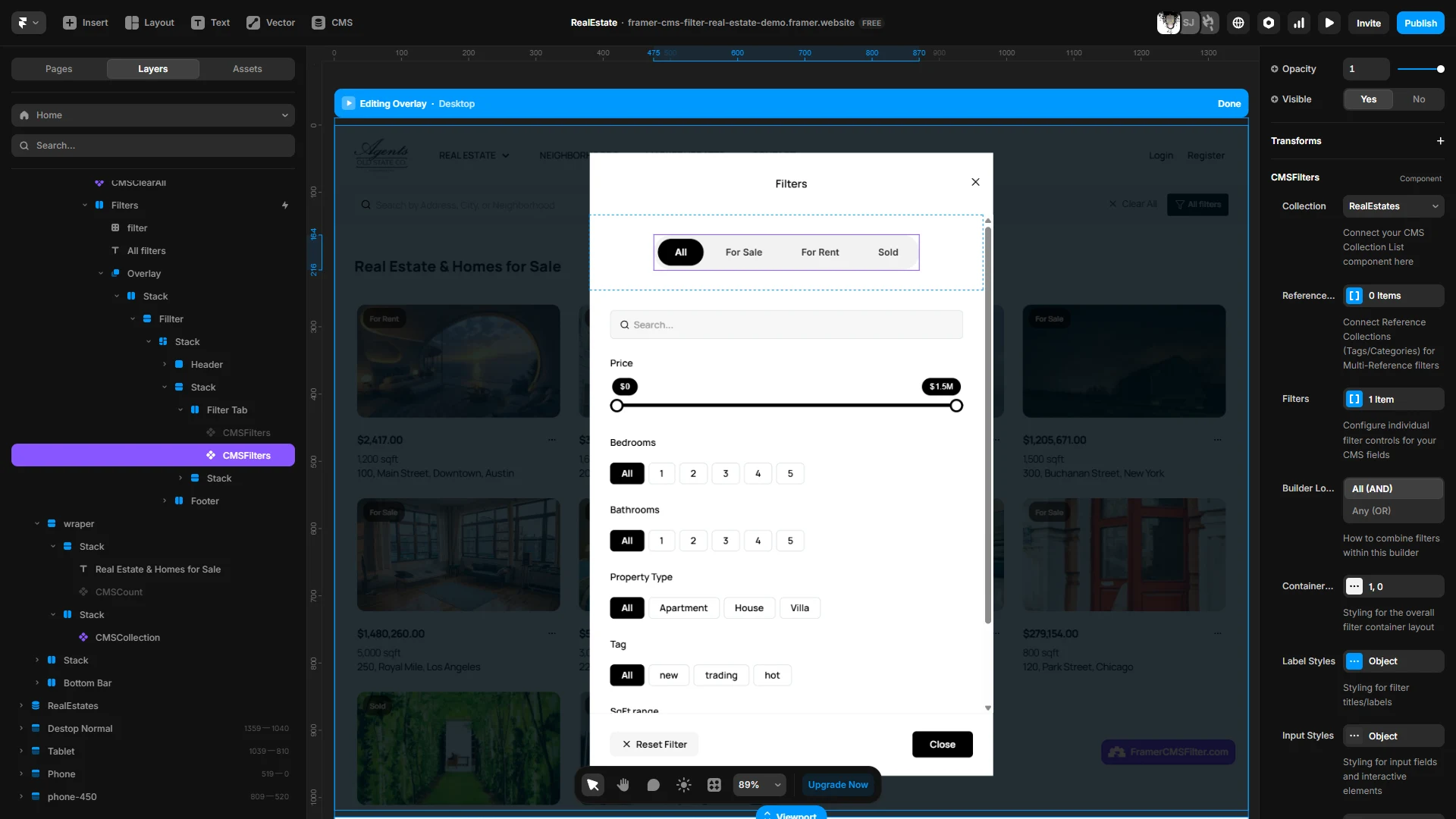
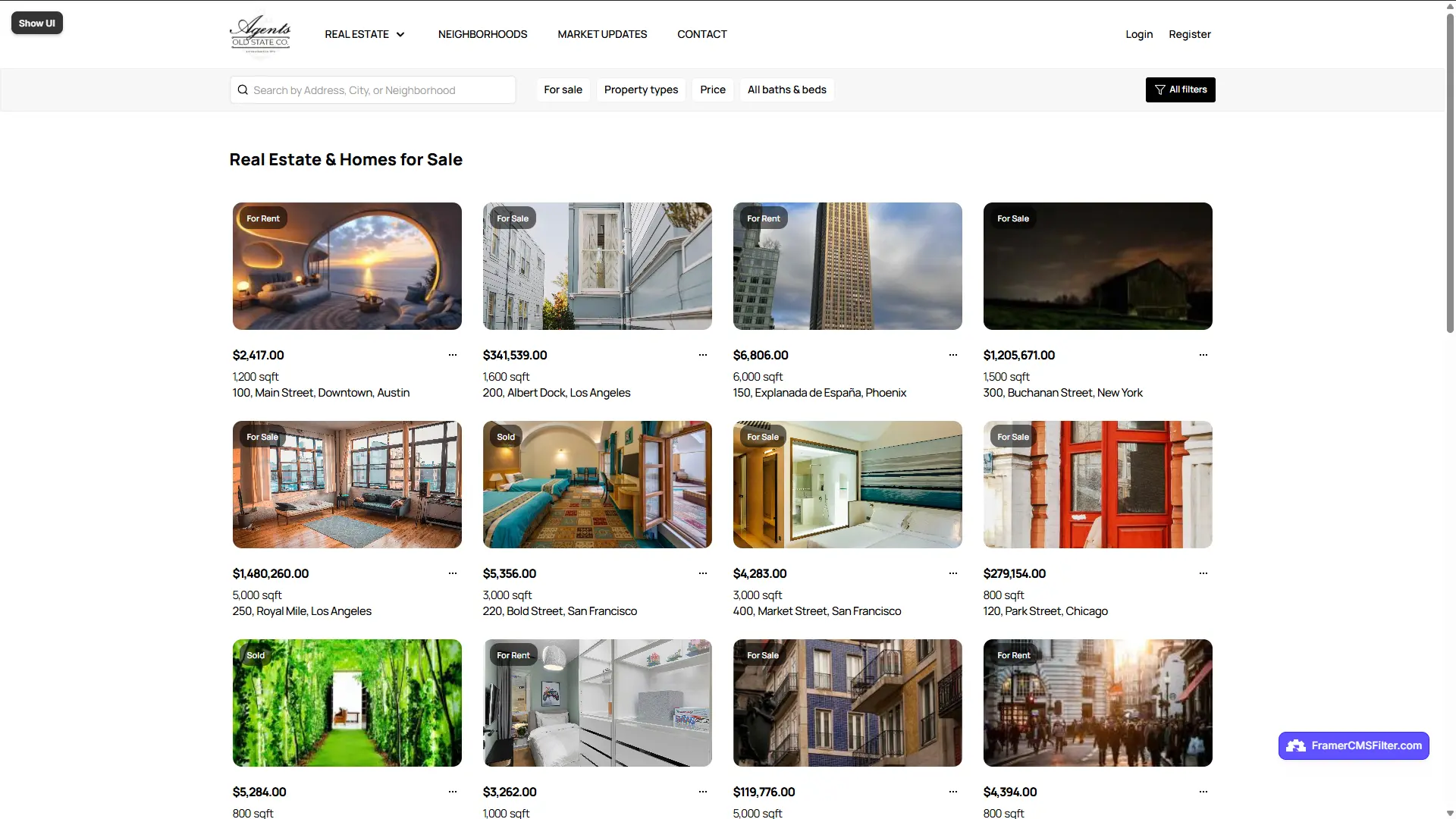
You need: price range slider, location, bedrooms (3 OR 4 OR 5), property type, and amenity checkboxes. Desktop shows a top bar with location and type, a sidebar with price range and bedrooms. Mobile shows a drawer with everything. Both layouts need to share filter state.
Try this live: framercmsfilter.com/demo?demo=real-estate
That synchronized layout is what the plugin's storeKey system solves. One key, multiple filter groups, shared state automatically.
Car marketplace
You need: make, model, year range, mileage range, fuel type, and transmission. "I tried the variant workaround and hit a wall past 30 items" is the exact feedback from Framer designers who built car sites before this existed. Six filters on 200+ listings is not a variant problem. It's a filter system problem.
Try this live: framercmsfilter.com/demo?demo=cars
Job board
You need: role, location, remote/hybrid/on-site toggle, department, and seniority. Visitors apply three filters, then want to see "12 jobs match" and remove just "Seniority: Senior" without clearing everything else.
That's active filter chips, result count, and clear-all working together. None of those ship with native Dynamic Filters.
Directory and listing sites
A local business directory needs: category, city, price range, and tags. Four simultaneous filters. Active chips. A clear-all button. A result count.
Native handles one of those cleanly. The rest need the plugin.
For more on structuring CMS content for complex sites, the
Setting up the CMS Filter plugin
The setup follows a similar pattern to native filters, with a broader component set.
Step 1. Install from
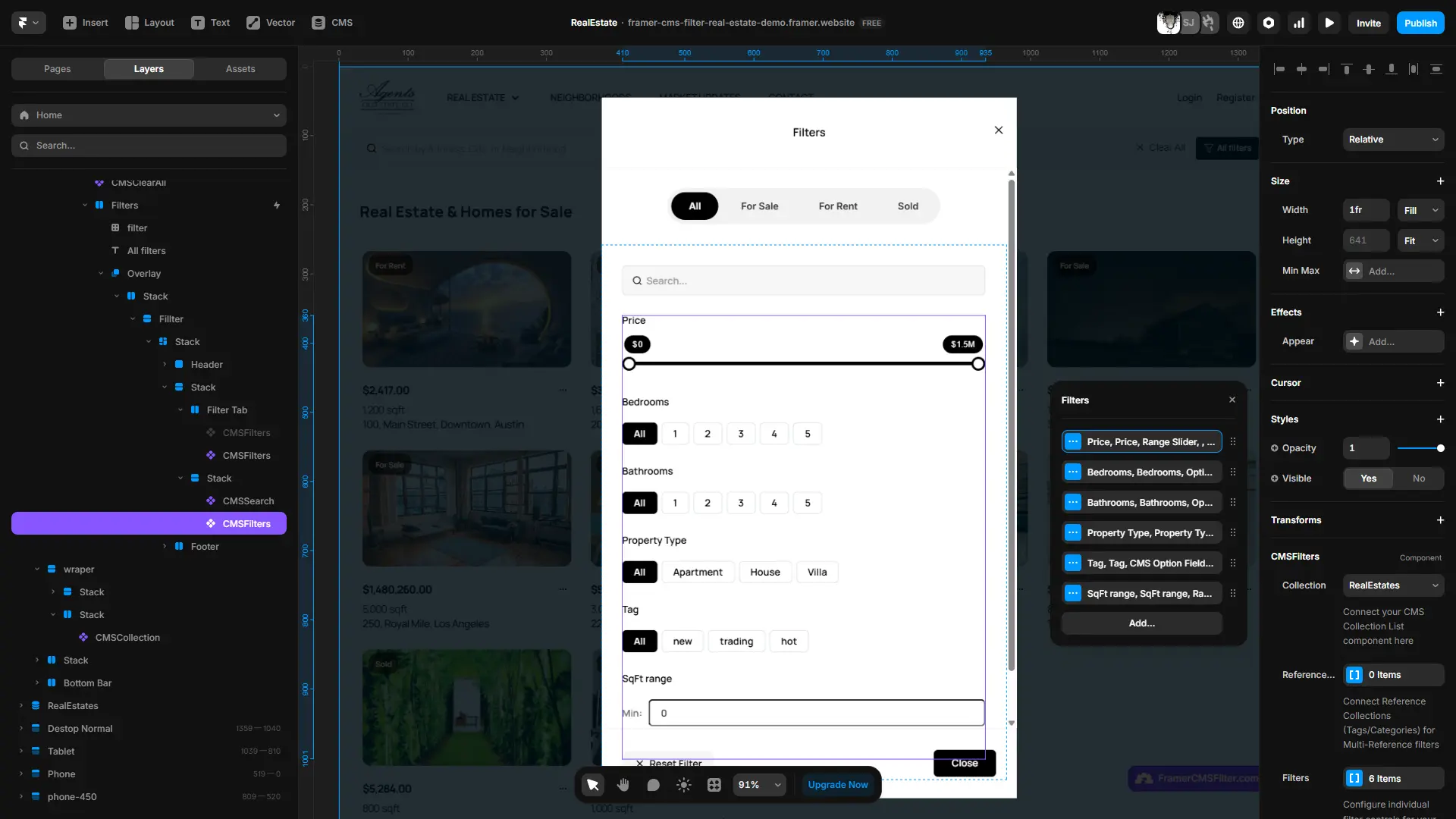
Step 2. Replace your Collection List with a CMSCollection component. Connect it to your CMS collection. Set a storeKey (a string that names this filter group, e.g., "listings" or "jobs").
Step 3. Add a CMSFilters component. Set the same storeKey. Configure each filter: pick the type, select the CMS field, set display options.
Step 4. Add CMSSearch for multi-field search. Configure which fields to search across.
Step 5. Add CMSSort to give visitors sorting controls (newest, price: low to high, alphabetical, etc.).
Step 6. Add CMSCount to show "X results" and CMSClearAll to reset all active filters.
Step 7. For synchronized layouts, duplicate the CMSFilters block for your mobile layout. Set the same storeKey. Both filter groups share state automatically. Select a location on desktop. The mobile drawer reflects it.
Full documentation lives at framercmsfilter.com.
Pricing and access
Framer CMS Filter is a one-time purchase. No subscription.
| Plan | Price | Who it's for |
|---|---|---|
| Free | $0 | Basic filtering, try before buying |
| Personal | $79 one-time | Freelancers, single-site use |
| Agency | $179 one-time | Unlimited client projects |
The Agency tier covers unlimited client projects. Trusted by 2,000+ Framer users.
If you build more than one or two client sites per year, the Agency plan covers everything for the cost of a few hours of work.
FAQ
Does Framer have built-in filtering?
Yes. Framer ships native Dynamic Filters that let you bind CMS fields to page variables. You can add search, tabs, dropdowns, checkboxes, and toggles without writing code. It works well for basic single-field filtering. For multi-field search, sort, active filter chips, result counts, and synchronized filter groups across layouts, a dedicated plugin is the practical next step.
What are the limitations of Framer's native Dynamic Filters?
Native Dynamic Filters are page-variable-driven and work cleanly for simple use cases. They don't cover multi-field search, built-in sorting, active filter chips users can remove, result counts, a clear-all button, price range sliders, or synchronized filter groups across desktop and mobile layouts. For directories, job boards, real estate listings, and marketplaces, you'll hit those limits fast.
What is the difference between Framer Dynamic Filters and the CMS Filter plugin?
Framer's native Dynamic Filters let you bind one field to one page variable. The
Do Framer Dynamic Filters work on mobile?
Framer Dynamic Filters render and function on mobile because they sit outside the collection list and can be placed anywhere on the canvas. However, native filters don't support synchronized duplicate filter groups. Building a desktop sidebar and a mobile drawer that share state isn't possible natively. The CMS Filter plugin supports synchronized filter groups across layouts.
When should I use the CMS Filter plugin instead of native Dynamic Filters?
Use native filters when you need one or two simple dropdowns or tabs on a small collection. Upgrade to the
Bottom line
Framer's native Dynamic Filters solved the variant hell problem. For simple sites, one or two dropdowns on a small collection, they're all you need.
For real CMS sites, native is the starting point, not the finish line. Multi-field search, sorting, filter chips users can remove, result counts, synchronized filter groups, and reference-aware filtering are what turn a CMS list into a real discovery experience.
If your project needs any of those, the
Browse the live real estate demo or the cars demo to see it in a real project context. If that's what your client needs, the setup takes about 15 minutes.
Browse the full
Last updated: August 2026
Shahul
Founder of FramerHub