CMS Gallery Lightbox
A powerful CMS masonry gallery with native GLightbox support, responsive extraction, and interactive hover effects.
Overview
A powerful CMS masonry gallery with native GLightbox support, responsive extraction, and interactive hover effects.
- Native Masonry & Grid Layouts
- Smart Image Extraction (Supports Custom Components)
- GLightbox Integration (Images & Video)
- Interactive Hover Effects (Scale, Fade, Slide, Bounce)
- Customizable Captions
Transform Your CMS Collections
A CMS masonry gallery component with built-in GLightbox support, interactive hover effects, and smart image extraction. It effortlessly transforms raw CMS data or custom Framer gallery components into a stunning, fully responsive masonry grid.
Features
Smart Image Extraction Drop any custom component (like a custom 2x3 grid) into the slot, and this component will intelligently extract, deduplicate, and natively render all images into a seamless masonry layout.
Masonry & Grid Layouts Toggle between an automatic responsive masonry layout (perfect for varying image heights) or a clean, fixed-height Grid layout with customizable image fit settings.
GLightbox Integration Click-to-open lightbox for CMS images and videos, complete with fully customizable captions powered by your CMS text fields.
Hover Effects Scale, fade, slide, and bounce animations with customizable overlay colors, icons, and background blur effects.
Use Cases
Portfolio Galleries — Display your creative work with a dynamic masonry layout and professional lightbox experience.
Photography Showcases — Build a stunning, Pinterest-style photography grid that effortlessly scales across devices.
Video Galleries — Showcase your video content natively within a lightbox from your CMS URLs.
How to Use
Installation
VIDEO PLACEHOLDER: Installation Tutorial
- Log in to your account at framerhub.io
- Navigate to framerhub.io/dashboard
- Find CMS Gallery Lightbox in your Recent Purchases
- Click the "Copy" button
- Open your Framer project
- Paste the component anywhere on your canvas (Cmd/Ctrl + V)
Customization
Connect your Framer CMS collection to the component slot.
Layout Settings
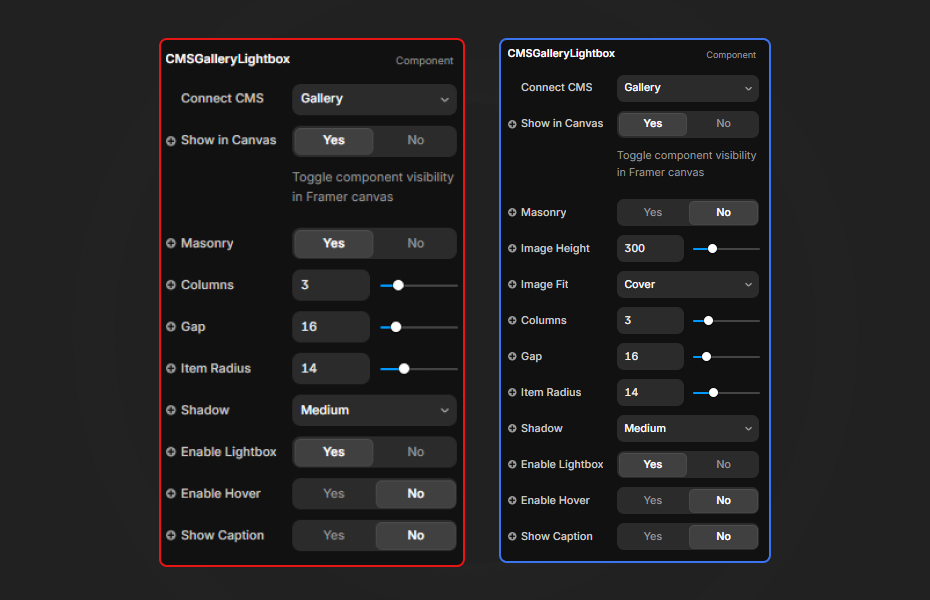
- Toggle between Masonry and Grid Layouts
- Adjust Image Height and Fit (in Grid mode)
- Adjust Columns and Gap
- Customize Item Border Radius and Shadow Intensity
Lightbox & Hover
- Enable or disable the Lightbox
- Enable hover effects and select animations (Scale, Fade, Slide, Bounce)
- Customize the overlay color, icon type (Zoom, Plus, View), icon size, and icon colors
Captions
- Toggle Show Caption to display image information inside the lightbox
- Adjust Caption Font, Color, Background, Padding, and Margin directly from the properties panel
Quick Tips
Custom Components — If you use a custom component variant inside the CMS slot, the Lightbox will automatically extract all its images and render them seamlessly into the masonry grid while ignoring hidden responsive variants.
Best Performance — Optimize your CMS images before uploading them for faster load times.
Layout Sizing — Ensure your container is sized appropriately to allow the masonry layout to render columns correctly on all breakpoints.
License
Single Use License — Use in one client project with full commercial rights. No redistribution. 1 license = 1 client.
Refund Policy
Due to the nature of our digital products, we are unable to offer refunds, but we're here to assist you with any questions or concerns!
Why Designers Love This
It turns standard CMS collections into highly engaging, interactive portfolios instantly, complete with a built-in lightbox experience that usually requires complex external libraries and custom code overrides.
CMS Gallery Lightbox - $18
A powerful CMS masonry gallery with native GLightbox support, responsive extraction, and interactive hover effects.
You might also like
Why Choose Framer Hub Components
Loved by Framer teams
Used by Framer professionals who need premium, no-code experiences.
"The Best Framer CMS Filtering Plugin I've Found — Truly a Game-Changer. I've tested a lot of Framer CMS filtering and sorting components — both free and paid — and this is by far the best one I've come across."
"He really helped me out when I needed assistance adding it to my Framer project. Super fast customer support highly recommend!"
"We had tried a couple of other Framer CMS filter components but they were buggy, hard to use and support was slow or non-existent. FramerCMSFilter is easier to use and has a lot of added functionality."
Got questions? We've the answers
Got questions? We've the answers
Everything you need to know about FramerHub.