Fluid Trail
High-performance fluid mouse trail effect powered by WebGL.
Overview
High-performance fluid mouse trail effect powered by WebGL.
- High Performance GPU-accelerated rendering (OGL/WebGL)
- Fluid organic motion with customizable lag
- Multiple blend modes for visual effects
- Adjustable trail count and size
- Portal mode for full-page coverage
Fluid Trail Effect
Add a layer of fluid interactivity with Fluid Trail. This component uses OGL (WebGL) to render a high-performance trail of diminishing circles that follows your cursor, creating a smooth, organic feel.
Features
WebGL Performance Unlike traditional DOM-based trails, this runs on the GPU, ensuring 60fps performance even with long, complex trails.
Organic Motion The "lag" parameter allows you to create trails that feel heavy and liquid, or snappy and energetic.
Blend Modes Use blend modes like "Difference" or "Screen" to make the trail interact visually with your underlying content.
Portal Rendering In preview/live mode, the trail renders as a portal to document.body, ensuring it covers the entire viewport regardless of component placement.
Use Cases
Interactive Portfolios — Add a dynamic, playful element that follows visitors as they explore your work.
Landing Pages — Create memorable first impressions with an eye-catching cursor effect.
Creative Agency Sites — Demonstrate technical creativity with a smooth, GPU-powered visual effect.
Event & Entertainment Sites — Add energy and movement to promotional pages.
How to Use
Installation
VIDEO PLACEHOLDER: Installation Tutorial
- Log in to your account at framerhub.io
- Navigate to framerhub.io/dashboard
- Find Fluid Trail in your Recent Purchases
- Click the "Copy" button
- Open your Framer project
- Paste the component anywhere on your canvas (Cmd/Ctrl + V)
Customization
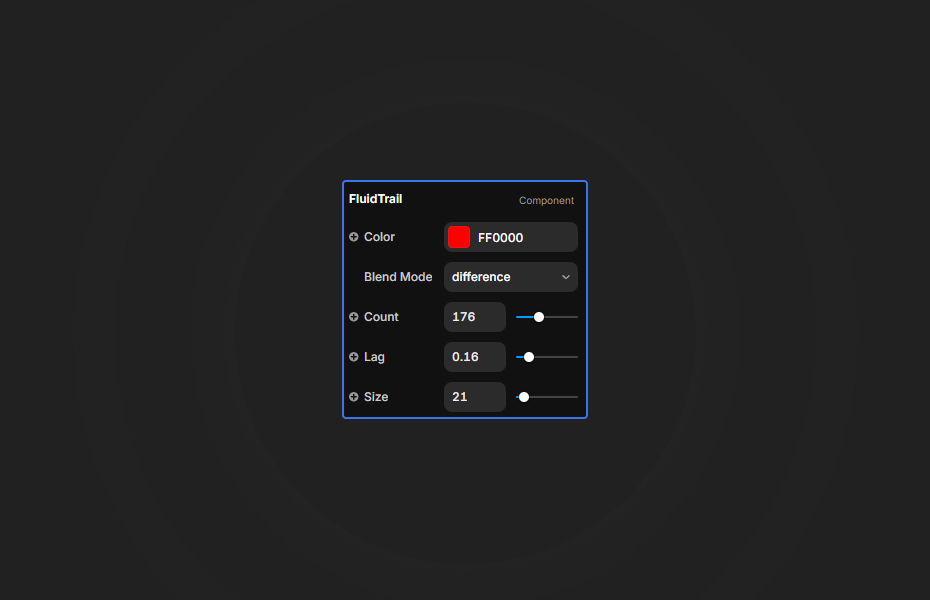
Color Set the trail color using the color picker. Supports hex, RGB, and short hex formats.
Blend Mode Choose from Normal, Difference, Screen, Overlay, Multiply, or Exclusion to create different visual effects.
Count Adjust the number of circles in the trail (5-500). Higher counts create longer, more dramatic trails.
Size Control the radius of the head circle (10-200). Trailing circles scale down proportionally.
Lag Set the inertia of the trail (0.01-0.99). Higher values create smoother, slower-following trails.
Quick Tips
Best Performance — Keep count between 50-200 for optimal performance on most devices.
Blend Mode Magic — Use "Difference" blend mode on dark backgrounds for an inverted color effect. Use "Screen" for a glowing appearance.
Lag Settings — Lower lag (0.1-0.2) for snappy, responsive trails. Higher lag (0.5+) for liquid, flowing motion.
Placement — Place anywhere on canvas; the component automatically renders full-screen in preview mode via portal.
License
Single Use License — Use in one client project with full commercial rights. No redistribution. 1 license = 1 client.
Refund Policy
Due to the nature of our digital products, we are unable to offer refunds, but we're here to assist you with any questions or concerns!
Why Designers Love This
Fluid Trail adds an instant "wow factor" to any project. The OGL-powered rendering ensures buttery-smooth 60fps performance while the customizable lag and blend modes let you create everything from subtle accents to dramatic visual effects. Perfect for creative portfolios, landing pages, and any site that needs a touch of interactive magic.
Fluid Trail - $9
High-performance fluid mouse trail effect powered by WebGL.
You might also like
Why Choose Framer Hub Components
Loved by Framer teams
Used by Framer professionals who need premium, no-code experiences.
"The Best Framer CMS Filtering Plugin I've Found — Truly a Game-Changer. I've tested a lot of Framer CMS filtering and sorting components — both free and paid — and this is by far the best one I've come across."
"He really helped me out when I needed assistance adding it to my Framer project. Super fast customer support highly recommend!"
"We had tried a couple of other Framer CMS filter components but they were buggy, hard to use and support was slow or non-existent. FramerCMSFilter is easier to use and has a lot of added functionality."
Got questions? We've the answers
Got questions? We've the answers
Everything you need to know about FramerHub.