AutoTOC
Auto-generated table of contents that tracks scroll position.
Overview
Auto-generated table of contents that tracks scroll position.
- Automatically finds H2 and H3 headings
- Highlights active section on scroll
- Smooth scroll to anchor
- Collapsible subsections with icons
AutoTOC
Automatically generate a table of contents for your blog posts or documentation pages. This component scans your page for H2 and H3 headings and creates a clickable, sticky navigation menu that highlights the current section as the user scrolls.
Features
Auto-Generation
No manual linking required. Just drop it on your page, and it automatically finds all <h2> and <h3> tags to build the hierarchy.
Scroll Tracking The active section is highlighted in real-time as the user scrolls down the page, providing clear context.
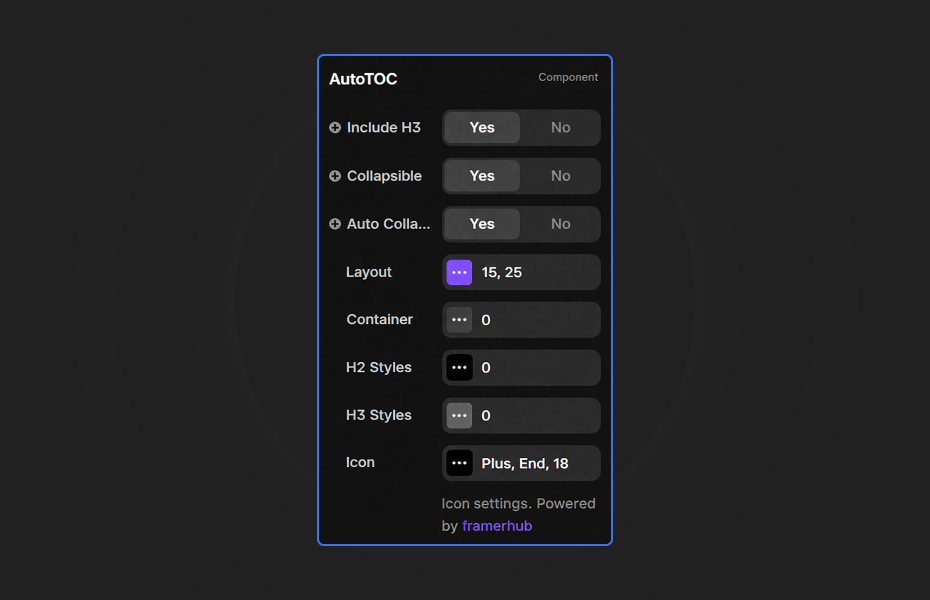
Collapsible Subsections Keep your TOC clean by automatically collapsing H3 subsections when they are not in view.
Customizable Styles Full control over fonts, colors, hover states, and active states for both H2 and H3 heading levels.
Use Cases
Blog Posts — Perfect for long-form articles where readers need quick navigation between sections.
Documentation — Help users navigate technical docs, API references, and knowledge bases effortlessly.
Landing Pages — Make multi-section landing pages easier to explore with sticky navigation.
How to Use
Installation
VIDEO PLACEHOLDER: Installation Tutorial
- Log in to your account at framerhub.io
- Navigate to framerhub.io/dashboard
- Find AutoTOC in your Recent Purchases
- Click the "Copy" button
- Open your Framer project
- Paste the component anywhere on your canvas (Cmd/Ctrl + V)
Customization
Use the property controls to adjust the look and feel:
Layout
- Gap between items
- Indentation for H3 subsections
H2/H3 Styles
- Font family, size, and weight
- Default, hover, and active colors
- Background colors and padding
Collapsible Mode
- Toggle collapsible subsections
- Auto-collapse options
Quick Tips
Sidebar Placement — Place the component in a sticky sidebar for best results. Users can navigate while scrolling.
Use Standard Headings — Ensure your page uses proper H2 and H3 text styles in Framer for the component to detect them.
Preview Mode — The component only populates with real headings in Preview/Publish mode. Canvas shows placeholder data.
Dark Mode — Customize colors for both light and dark themes using the color controls.
License
Single Use License — Use in one client project with full commercial rights. No redistribution. 1 license = 1 client.
Refund Policy
Due to the nature of our digital products, we are unable to offer refunds, but we're here to assist you with any questions or concerns!
Why Designers Love This
AutoTOC is the fastest way to add professional, auto-updating navigation to content-heavy pages. No manual linking, no maintenance—just drop it in and go.
AutoTOC - $14
Auto-generated table of contents that tracks scroll position.
You might also like
Why Choose Framer Hub Components
Loved by Framer teams
Used by Framer professionals who need premium, no-code experiences.
"The Best Framer CMS Filtering Plugin I've Found — Truly a Game-Changer. I've tested a lot of Framer CMS filtering and sorting components — both free and paid — and this is by far the best one I've come across."
"He really helped me out when I needed assistance adding it to my Framer project. Super fast customer support highly recommend!"
"We had tried a couple of other Framer CMS filter components but they were buggy, hard to use and support was slow or non-existent. FramerCMSFilter is easier to use and has a lot of added functionality."
Got questions? We've the answers
Got questions? We've the answers
Everything you need to know about FramerHub.